
Manage members and invitations
See everyone with access in Settings → Members, resend pending invitations, add or remove access, audit team health (admins, downloaders, inactive, expired, outside collaborators) and recent access changes.
Settings → Members is where you see everyone with access to your organization and keep it tidy — adding people, removing them, and chasing down invitations that didn't land. For how access levels work, see How sharing & access works.
See who has access
The members list shows everyone with access. Filter with the tabs across the top: All, Portfolio, Location, Project, and Pending. Each row shows the person's name, email, what they can do, and where.
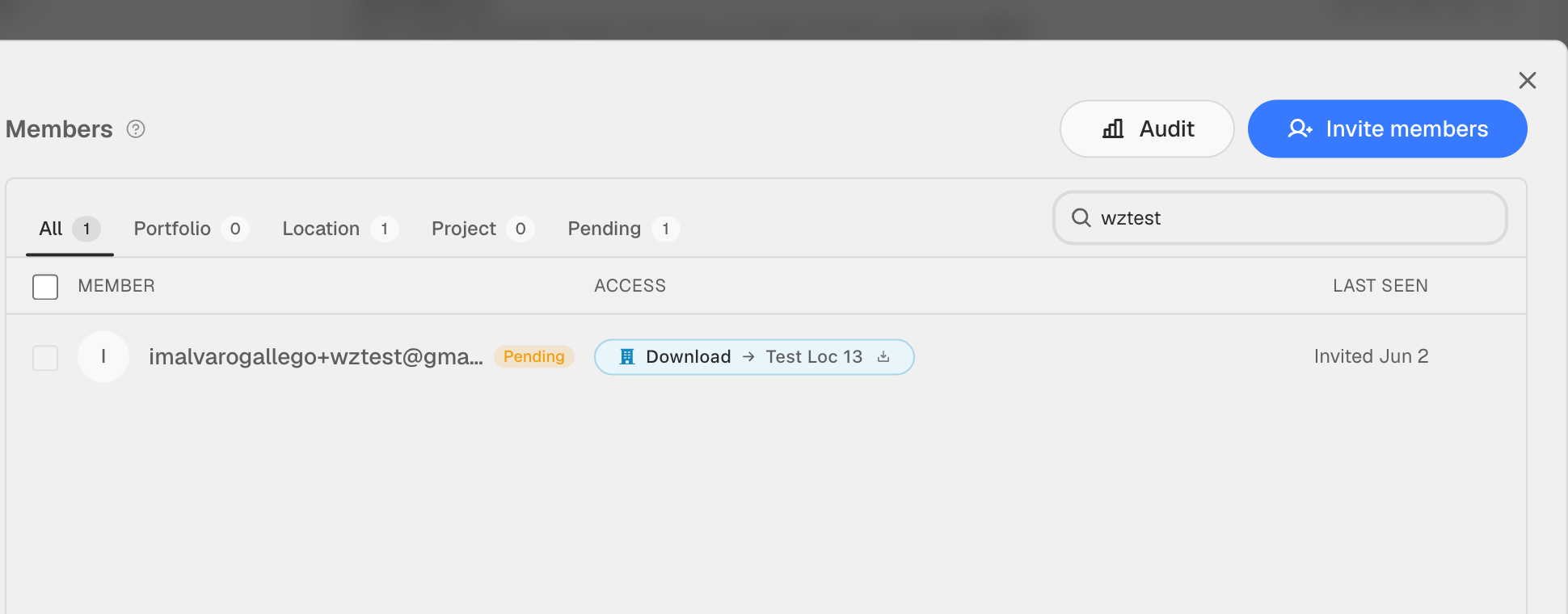
Click anyone to open their access drawer — it lists every place they have access, including inherited rows (for example, a Portfolio Admin's locations and projects show up under Inherited from a higher-scope role). That's the complete picture of what that person can reach.
Resend a pending invitation
People who haven't accepted yet show under the Pending tab with an orange chip in their row. Click them to open the drawer — the top of the panel is a yellow Pending invitation card with a Resend invitation button. That sends a fresh link and restarts the 14-day window.
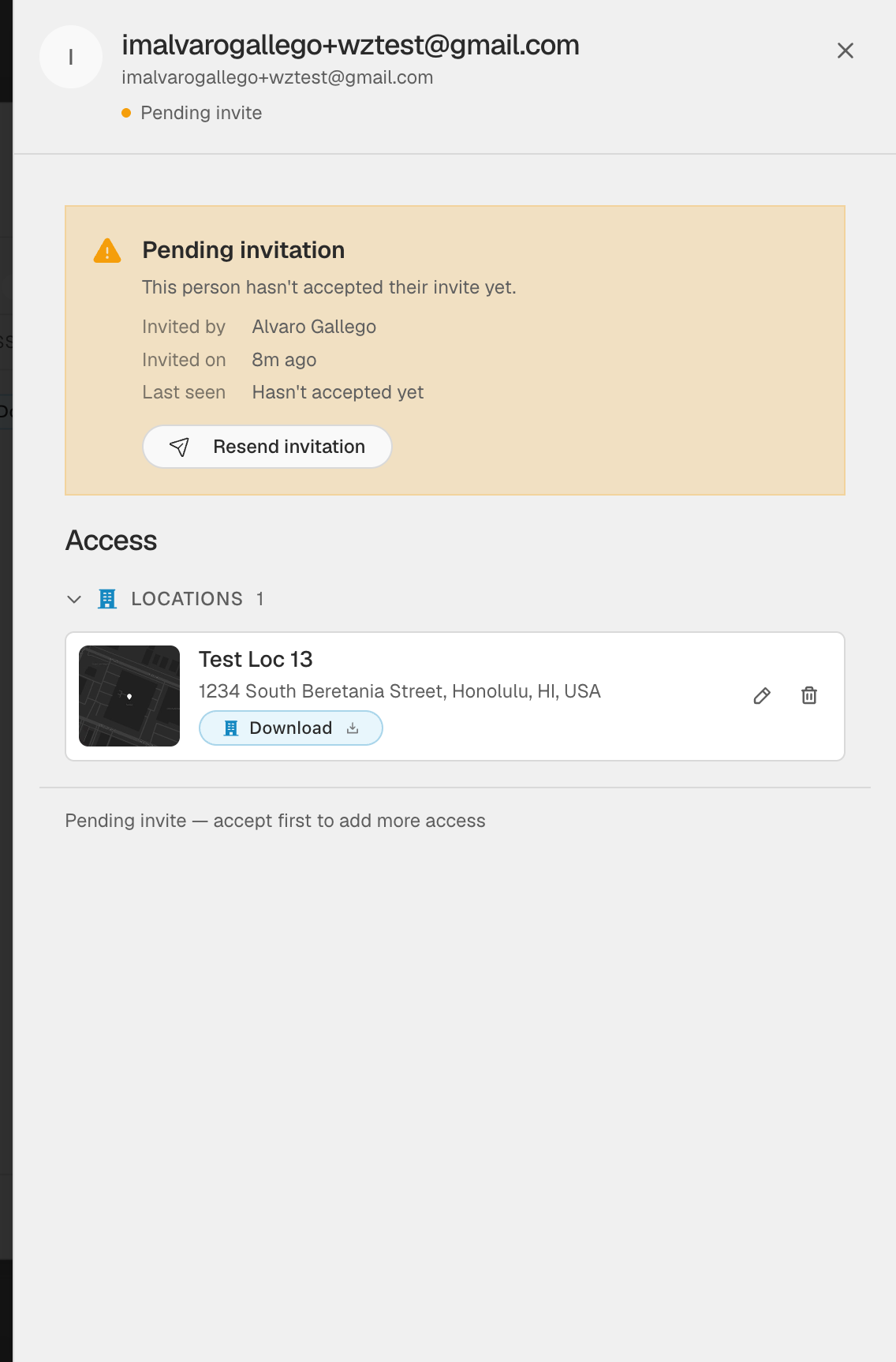
That's the first thing to try when someone says they never got their invite.
Add more access to an existing person
From a person's drawer, click Add access at the bottom. The wizard is the same as the regular Invite members flow but pre-targeted to that person — pick a role, pick the scope, pick a bundle. Use this to give someone an extra location or project on top of what they already have.
Remove access
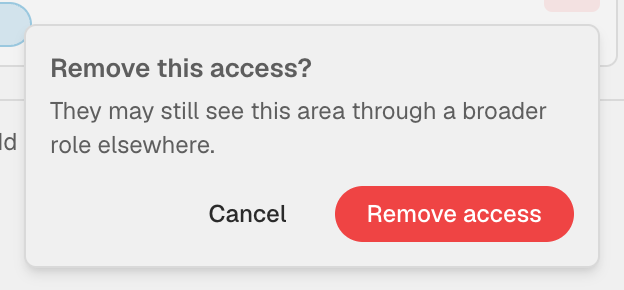
To revoke a single grant, click the trash icon on that row. A small confirm appears:
To take everything away in one shot, use the big Remove access button at the top of the drawer.
To remove several people at once, check their rows in the list and use Bulk revoke.
The wizard does not currently block you from removing the last Portfolio Admin — that guard is in flight. Until it ships, double-check that at least one other Portfolio Admin will remain before you remove or downgrade an admin.
Audit who has what
Click the Audit button next to Invite members to open the audit panel — a quick health check for the team:
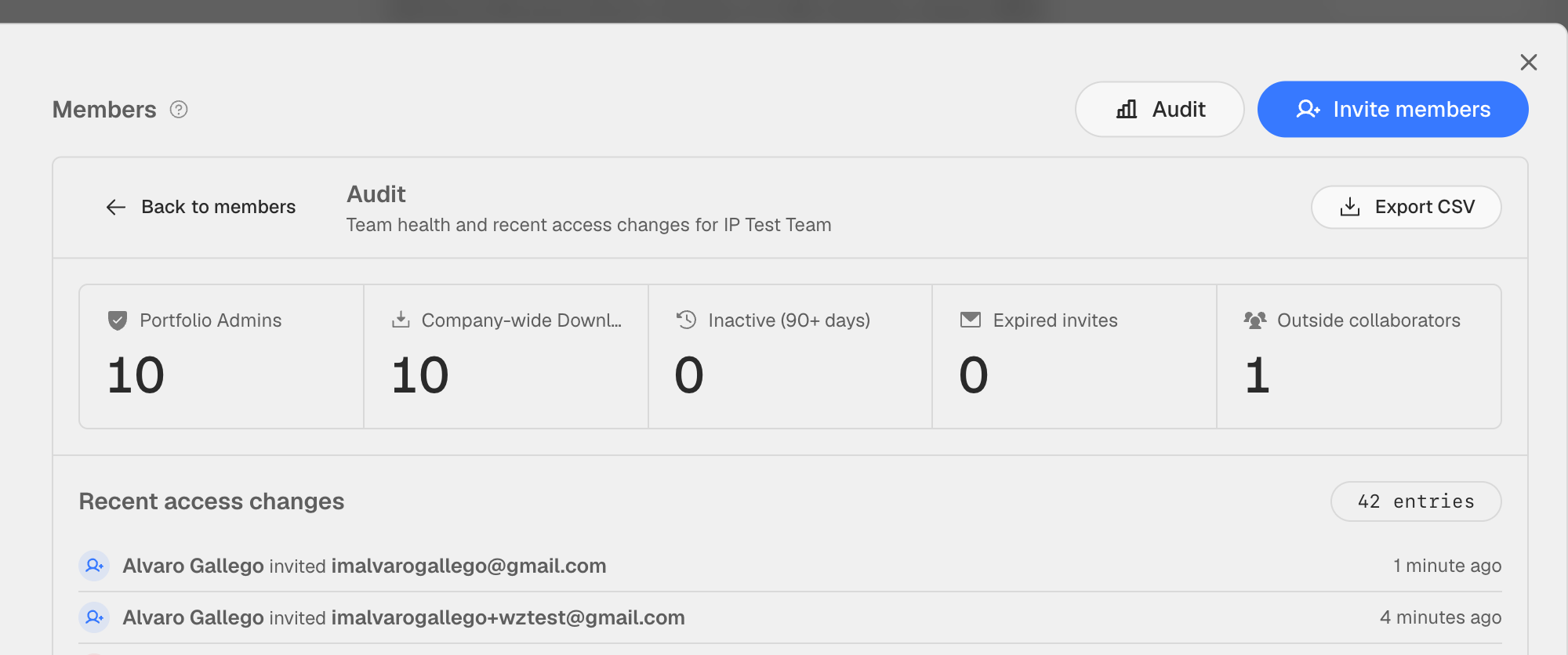
The tiles surface:
- Portfolio Admins — how many people can see everything
- Company-wide Download — how many can download files everywhere
- Inactive (90+ days) — people who haven't signed in for three months
- Expired invites — invitations past their 14-day window
- Outside collaborators — people on a non-company email domain
Below the tiles, the Recent access changes feed lists who invited, accepted, changed, or revoked access — useful when something looks off and you want to know who did what. Export CSV dumps the same data for compliance reviews.
A Pending person has been invited but hasn't accepted yet — they have no access until they click the link in their email and sign in. Once they accept, they move out of Pending and their access becomes live.
Corporate email filters sometimes block invitation emails. If someone never receives theirs and Resend invitation doesn't help either, contact support and we can activate the account manually.