Share a location or project
Share access straight from a location or a single project, choose a View/Download/Manage bundle, and use restricted projects to keep sensitive data separate within one building.

Share access straight from a location or a single project, choose a View/Download/Manage bundle, and use restricted projects to keep sensitive data separate within one building.
Sharing straight from a location or project is the fastest way to give someone access to one specific thing. It uses the same access levels and bundles as a full invite — see How sharing & access works for the concepts. The difference is that you start from the place you want to share, so the scope is already set for you.
On the location, click the stack of member avatars in the header. A panel opens listing everyone with access, split into a Location tab and a Project tab so you can see who's at the building level versus who's on individual projects.
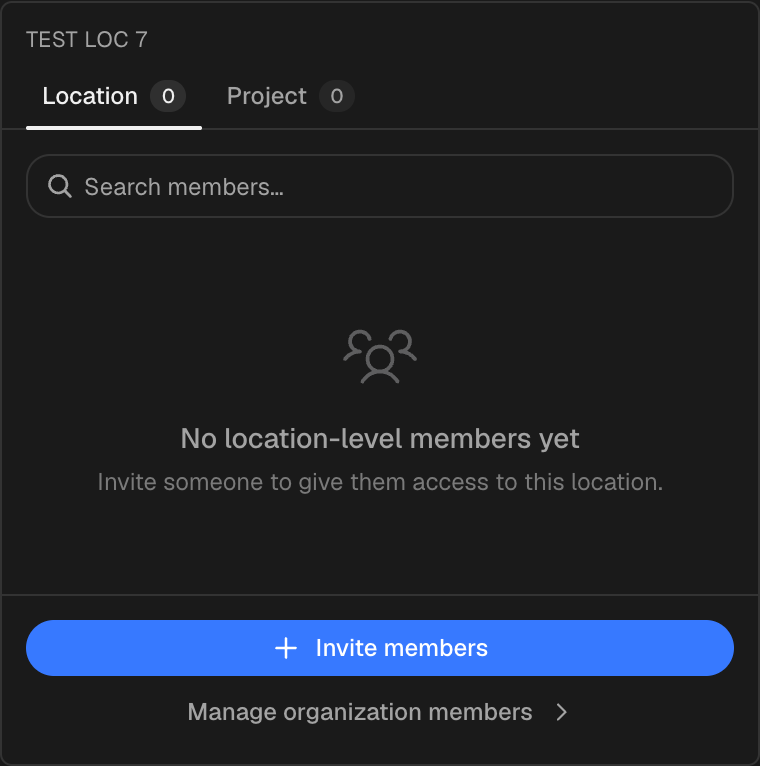
Click Invite members. Because you started from this location, the invite is already scoped to it — anyone you add becomes a Location Member with access to every project in this building.

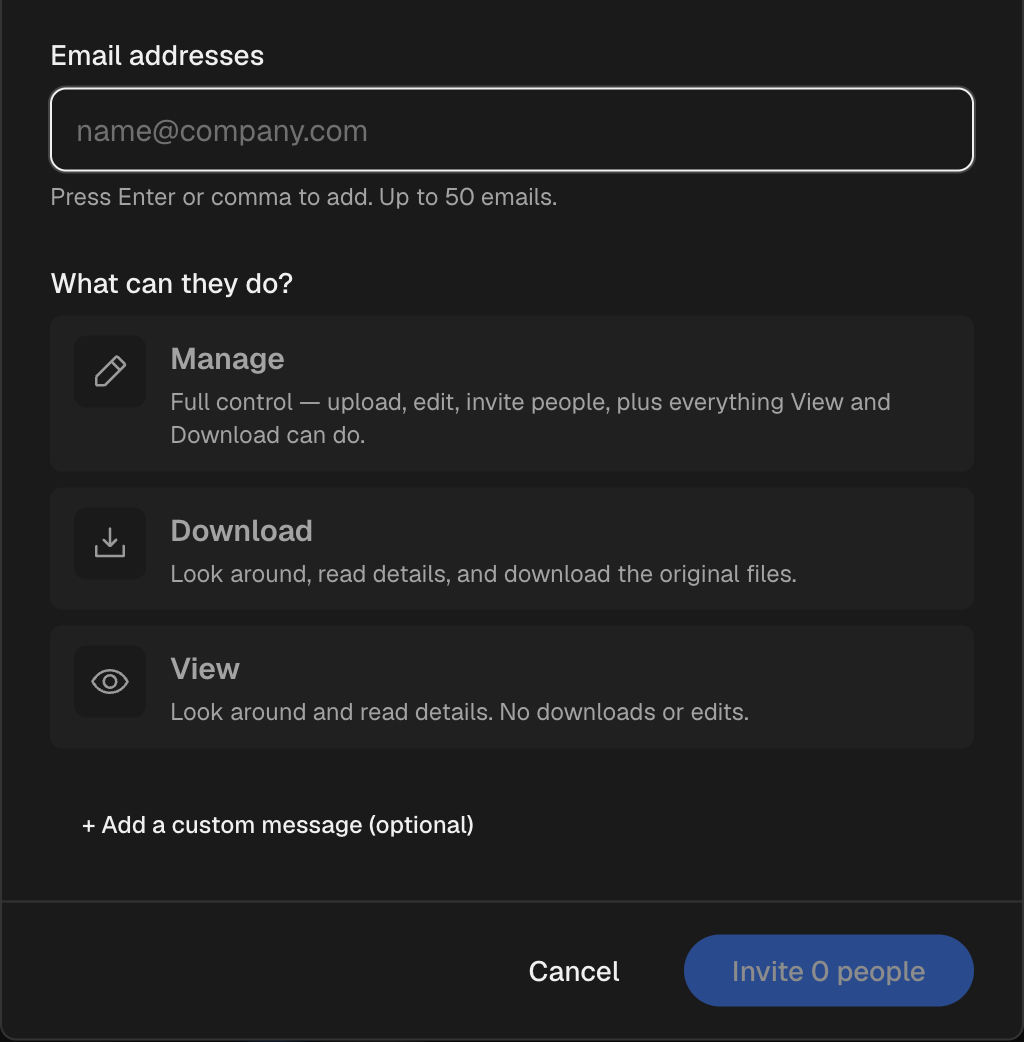
Enter their email addresses, then pick a bundle — View, Download, or Manage. Optionally turn on Billing access and add a message. Click Invite to send.
To share just one project — say, the BIM model but not the site-monitoring photos in the same building — start from the project instead.
Open the project (from its tab on the location), open the people panel, and choose Invite members there. The person becomes a Project Member — they see only this project and its files, and nothing else at the location.
Share the BIM project with your design contractor as a Project Member, and the site-monitoring project with your inspection team as separate Project Members. Neither team sees the other's data, and you never had to create duplicate locations.
By default, every project at a location is visible to that location's members. When something is sensitive, an admin can restrict a project so only the people explicitly added to it can see it.
People who aren't members of a restricted project don't see it at all — not even its name — and the matching tab simply shows no data for them. Restricting a project is what lets you separate confidential work inside a building that other location members can otherwise browse freely.
Once people have access, you can adjust it anytime — see Change or reduce access and Manage members & invitations.