Change or reduce access
Adjust someone's access after they've been invited — narrow their level (Portfolio to locations, location to projects), change the View/Download/Manage bundle, review what they lose, and handle pending invites separately.

Adjust someone's access after they've been invited — narrow their level (Portfolio to locations, location to projects), change the View/Download/Manage bundle, review what they lose, and handle pending invites separately.
Sometimes someone's access needs to change — maybe they should only see one project instead of the whole location, or you want to switch them from Manage to View. The Change role wizard handles that without disturbing anything else.
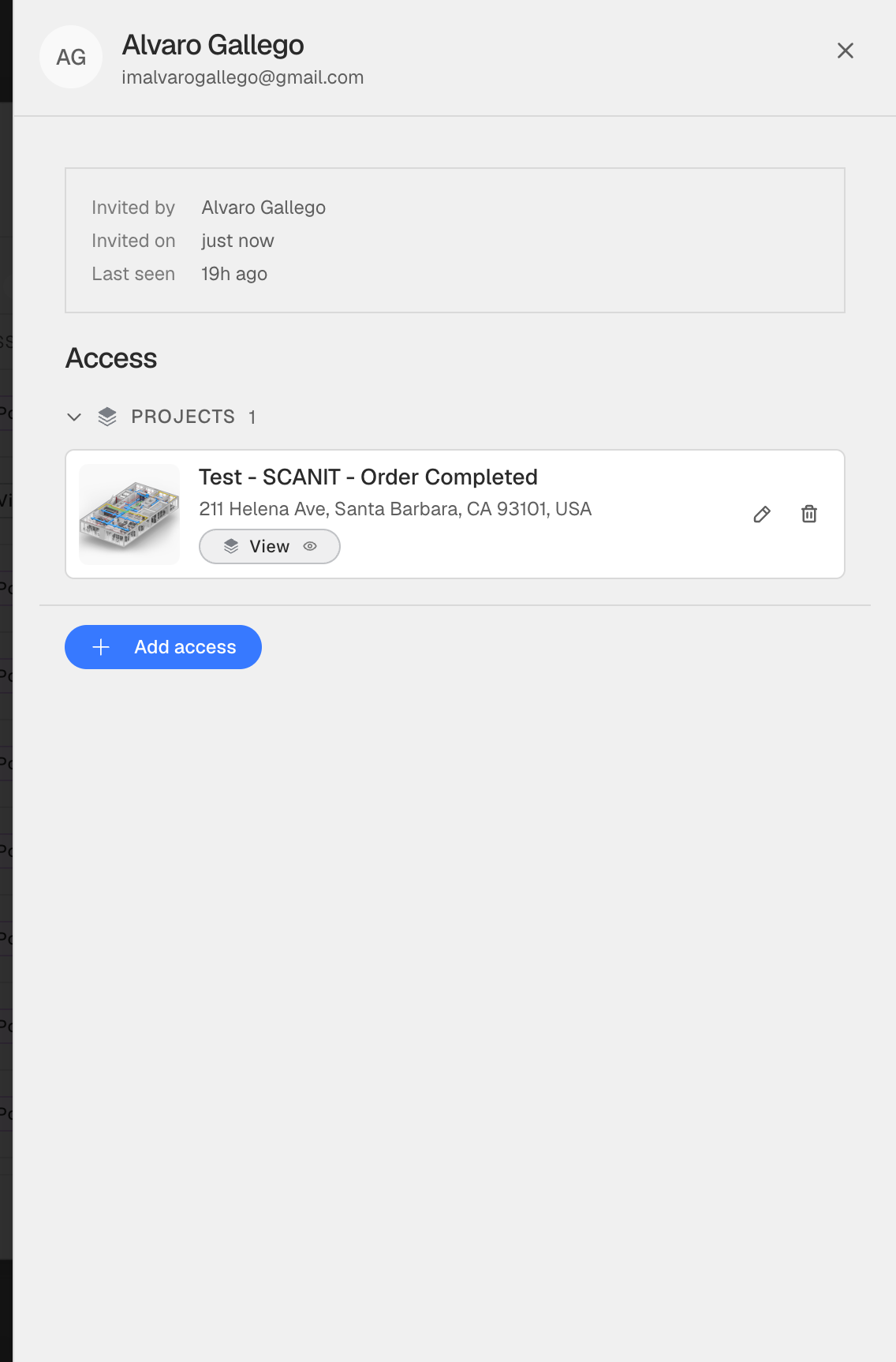
Open Settings → Members, find the row, and click the person to open their access drawer. The drawer lists everywhere they have access, grouped by Locations and Projects. Each row shows what they can do (View / Download / Manage) and a pencil + trash icon.
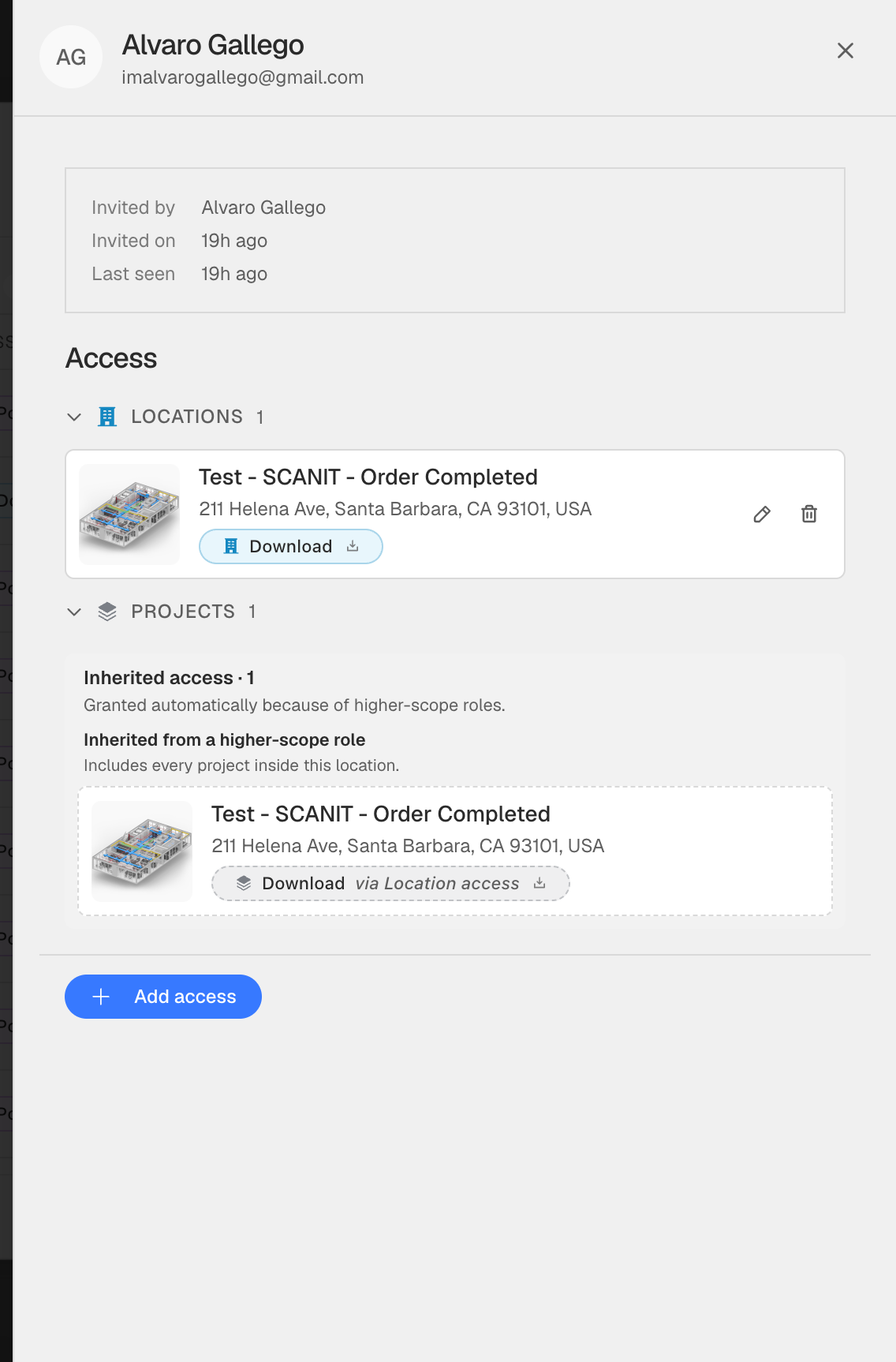
Projects inherited from a location-level role are shown under Inherited from a higher-scope role — they don't have their own pencil because they follow whatever you do at the location level.
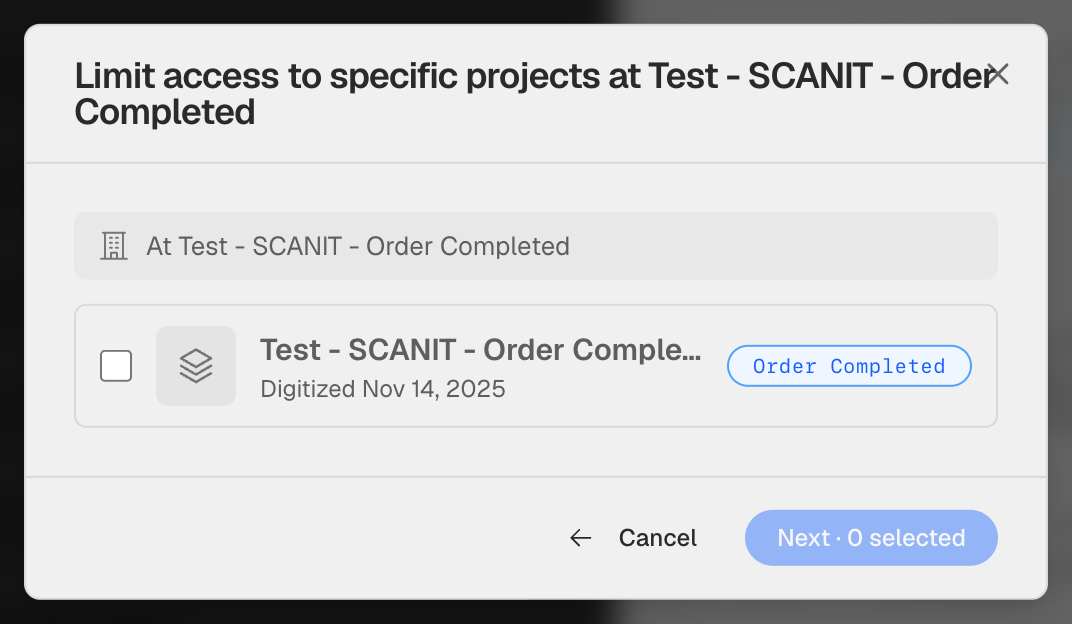
Click the pencil on a location row to open the Change role wizard. Step 1 is a project picker — pick the subset of projects in that location you want them to keep.
Check the projects they should still see. Next is disabled until you pick at least one — pick zero by mistake and the button won't fire.
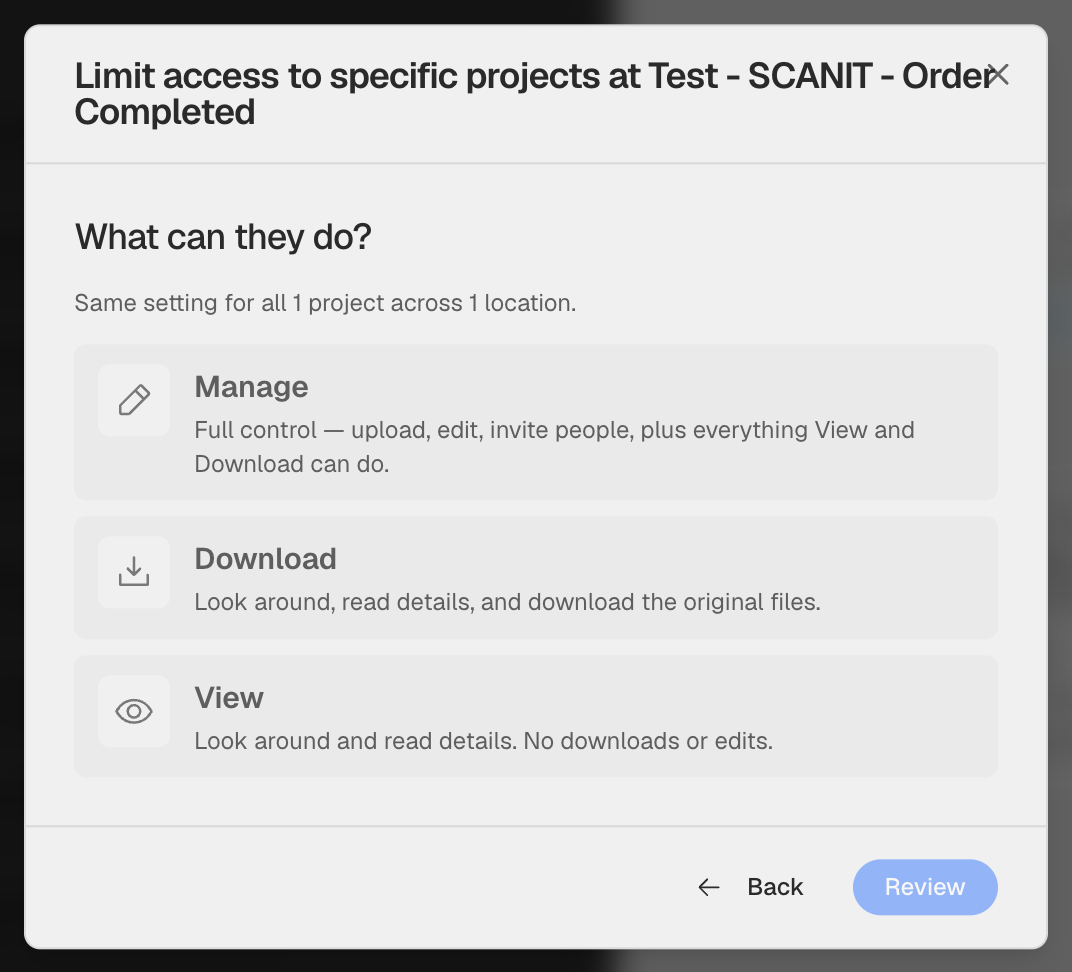
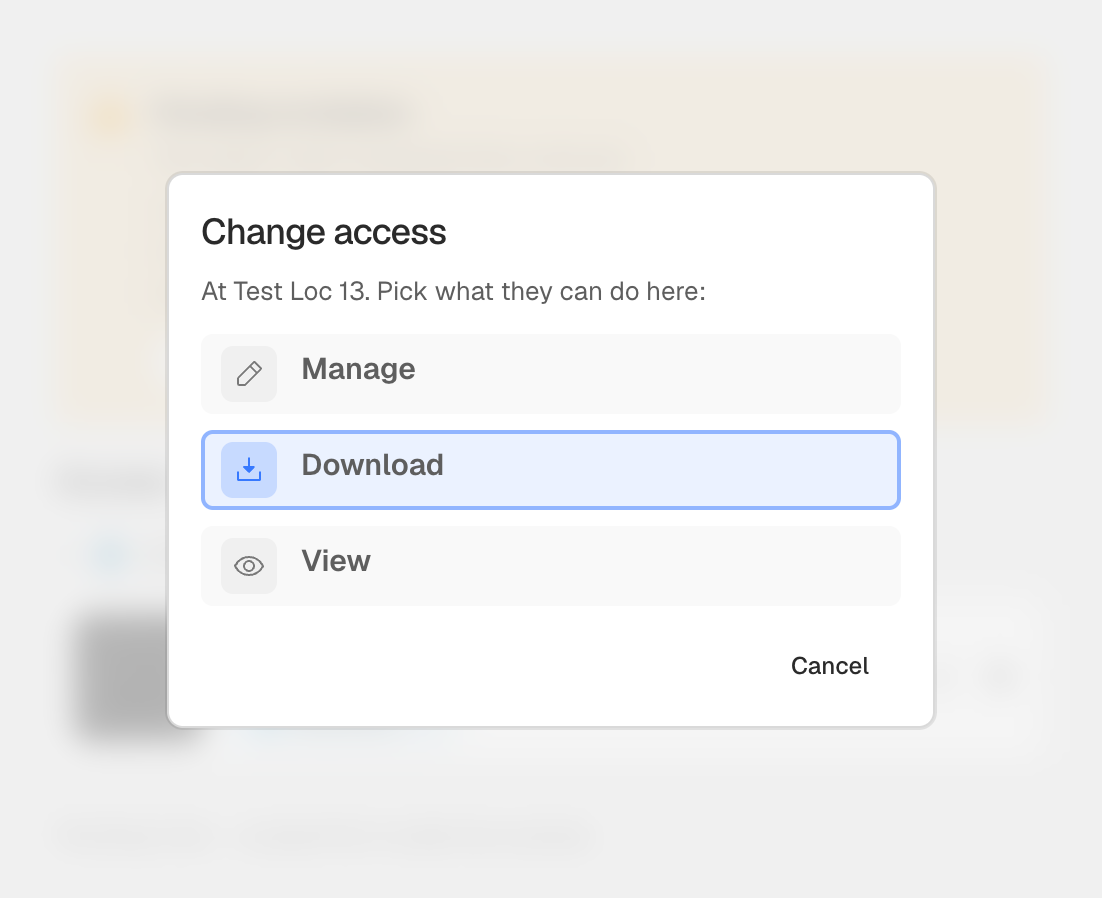
Choose Manage, Download, or View. The same level applies to every project you selected — if you need different levels per project, repeat the wizard once per project.
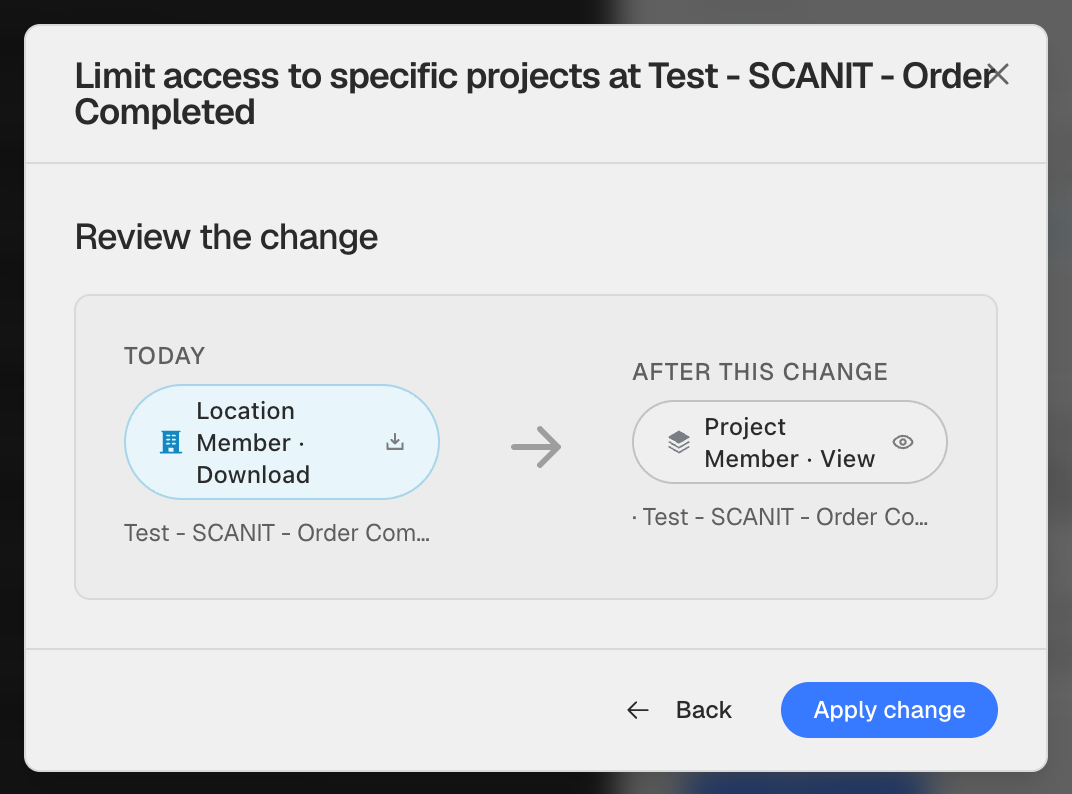
The review card shows Today (what they have now) → After this change (what they'll have). Confirm the role and bundle look right, then click Apply change.
The drawer refreshes immediately. The location row is gone and the projects you picked appear under Projects with the new bundle.
If you only want to change the View/Download/Manage level — without narrowing scope — pick the same single project (or the same set) in Step 1, then pick a different bundle in Step 2. The wizard treats it as a bundle change.
If someone hasn't accepted their invite yet, the pencil opens a simpler dialog with just the three bundle radios — you can't narrow scope on a pending invite, only swap the level.
To narrow a pending invite's scope, revoke it from the drawer and re-invite them with the smaller scope.
The trash icon next to each row removes that grant. They keep any access they have at other locations or projects — the change is scoped to whatever row you clicked. To take everything away in one shot, click Remove access at the top of the drawer.
The wizard will currently let you remove the very last Portfolio Admin. Until that guard ships, double-check that at least one other Portfolio Admin will remain before you remove or downgrade an admin.