Platform
Bring your OpenSpace site walkthroughs into the viewer
Paste a share link from OpenSpace and walk a 360° capture of your site inside the same viewer you use for the model.
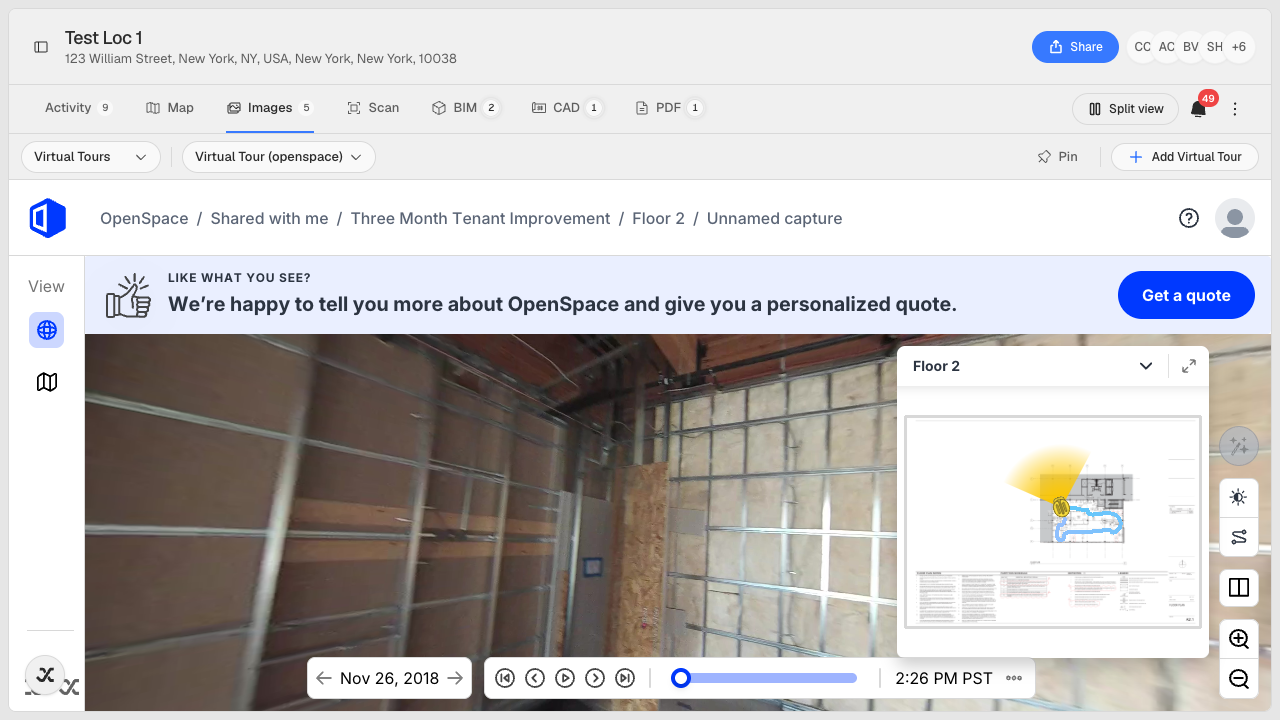

Paste a share link from OpenSpace and walk a 360° capture of your site inside the same viewer you use for the model.
The problem
The walkthrough and the model live in two different places. Your team captures a 360° record of the site with OpenSpace, then reviews the building in IPX, and the two never sit next to each other. To answer a simple question, what did this corner actually look like on the day we captured it, someone opens OpenSpace in one tab, finds the model in another, and lines them up from memory. The capture you paid to collect ends up underused, and the people making decisions about the building rarely have it open.
How it works
Virtual tours now play inside the IPX viewer. Add a tour once and anyone with access to the location can open it. No second account, no signing in to the tour provider, no hunting for the right link in an email. Open the Images tab, switch to Virtual Tours, and the walkthrough plays full-screen with the same controls you get on the provider's own site.
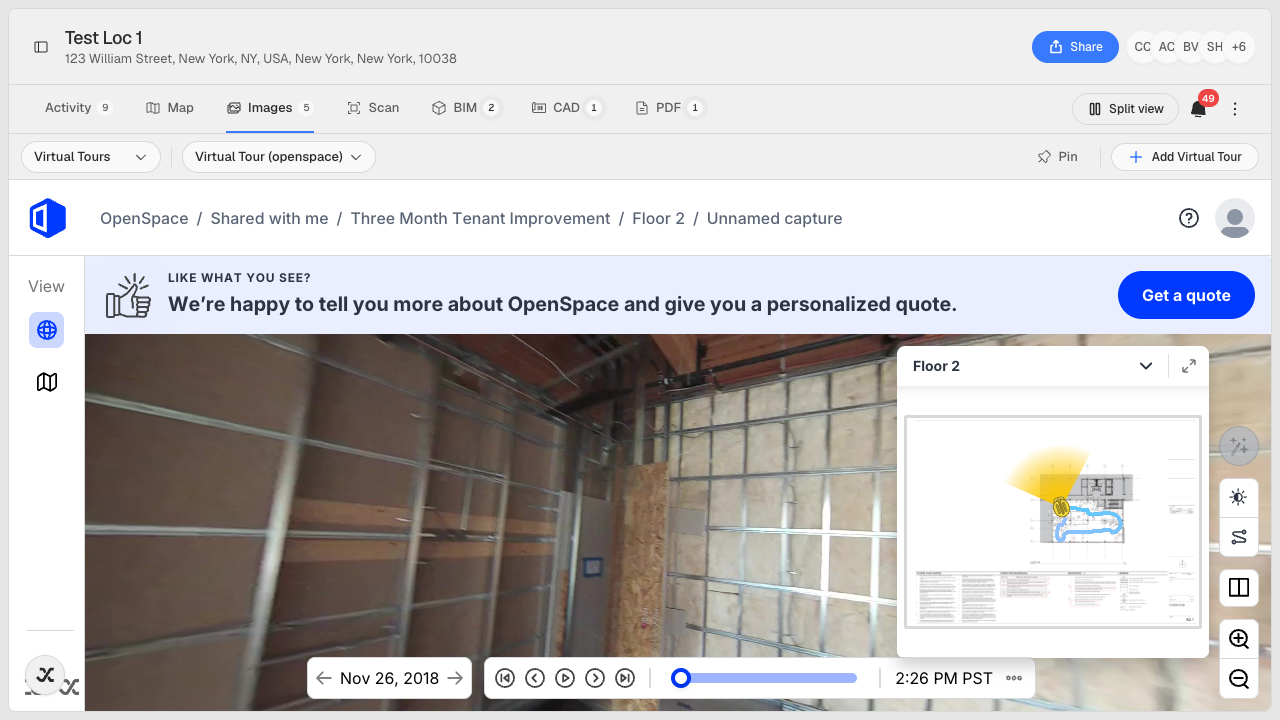
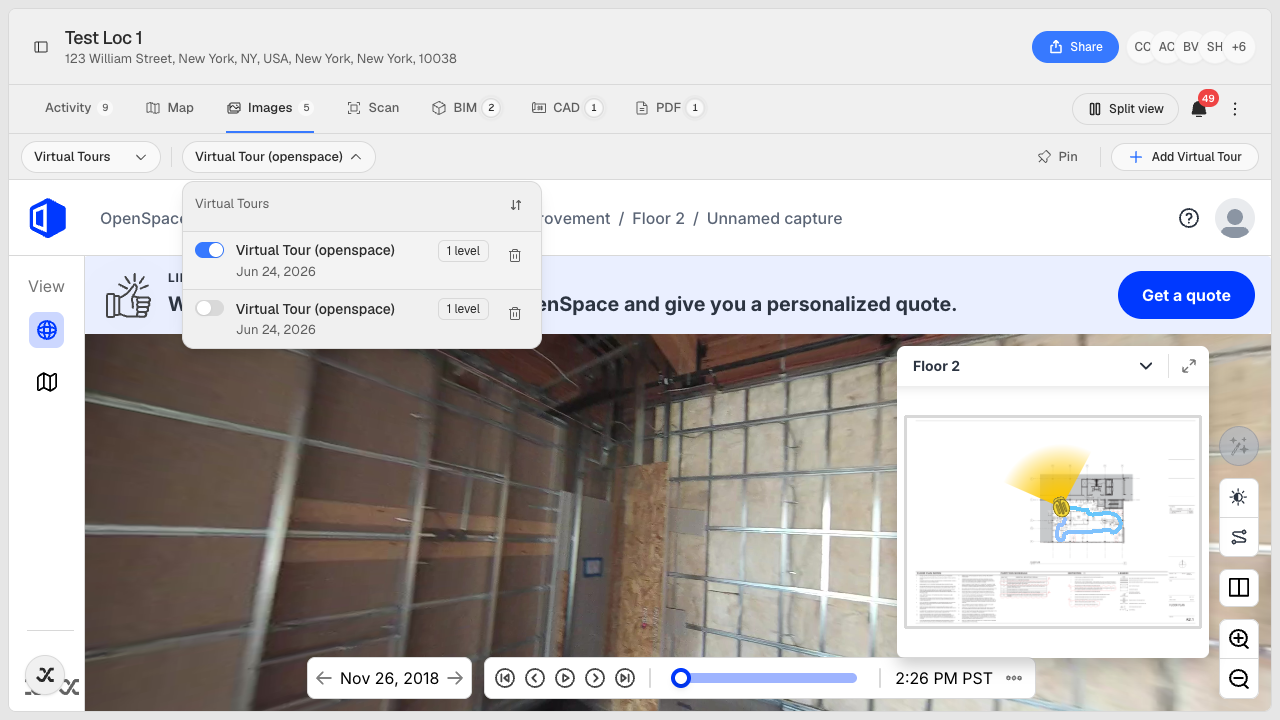
A location can hold more than one tour, listed by provider and capture date, so a sequence of visits stays together in one place. OpenSpace joins Matterport, NavVis, FARO Sphere, and Cupix, so whichever tool your crews capture with, the link drops into the same spot.
Getting started
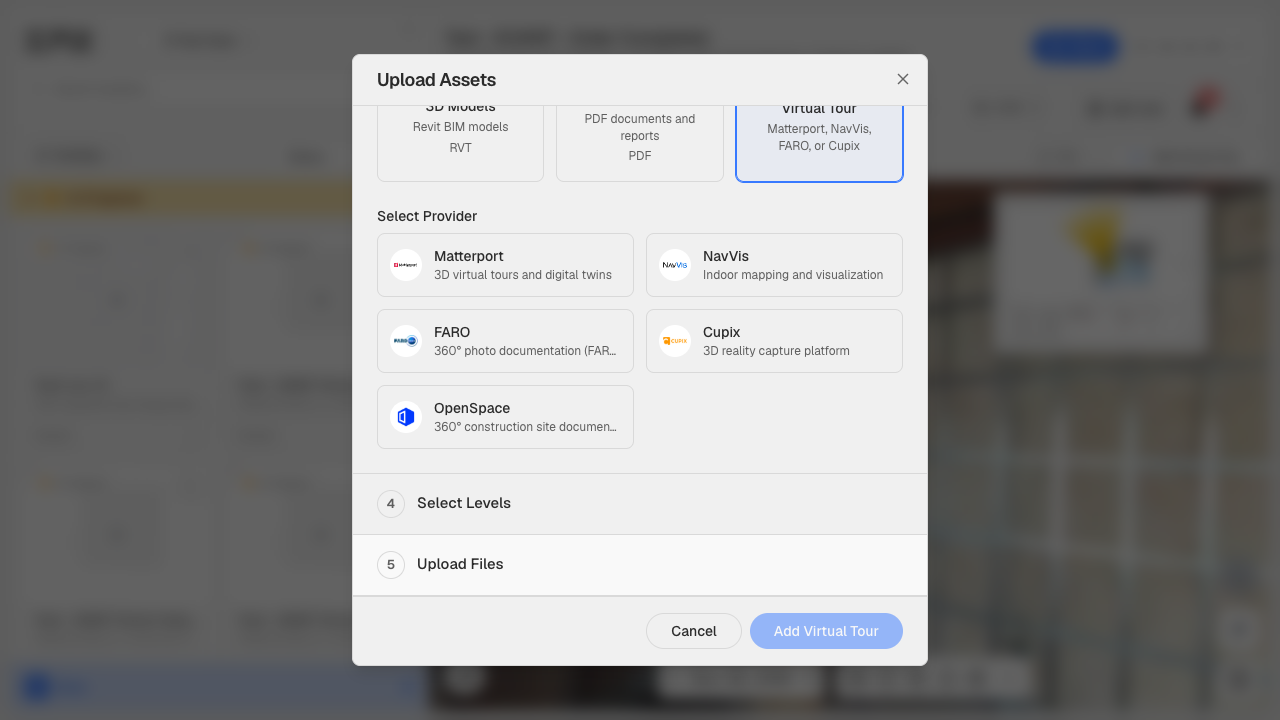
Open Upload Assets and choose Virtual Tour. Pick OpenSpace under Select Provider and paste your share link. Both the player link and the newer shared-folder link work, and the link is checked against the expected OpenSpace format before you save, so a stray typo is caught early. The tour then appears for the location under Images → Virtual Tours, labeled with the provider and the date it was captured.
Good to know
Tours play straight from the provider, so the link you paste has to be one you can already share. If a tour is private to your OpenSpace account, share it first. Renaming or removing a tour is limited to your organization's admins, so a stray link does not get changed by accident.