Sharing on IPX means giving someone access to exactly what they need — your whole portfolio, a single building, or one specific project — and choosing what they can do there. This guide explains how access works so you can pick the right setup every time. When you're ready to act, see Invite teammates, Share a location or project, Change or reduce access, and Manage members & invitations.
Every grant of access answers three questions: where can they work, what can they do there, and can they see costs.
Where they can work: the three access levels
When you invite someone, you first choose their level. Access cascades downward — the higher the level, the more they see.
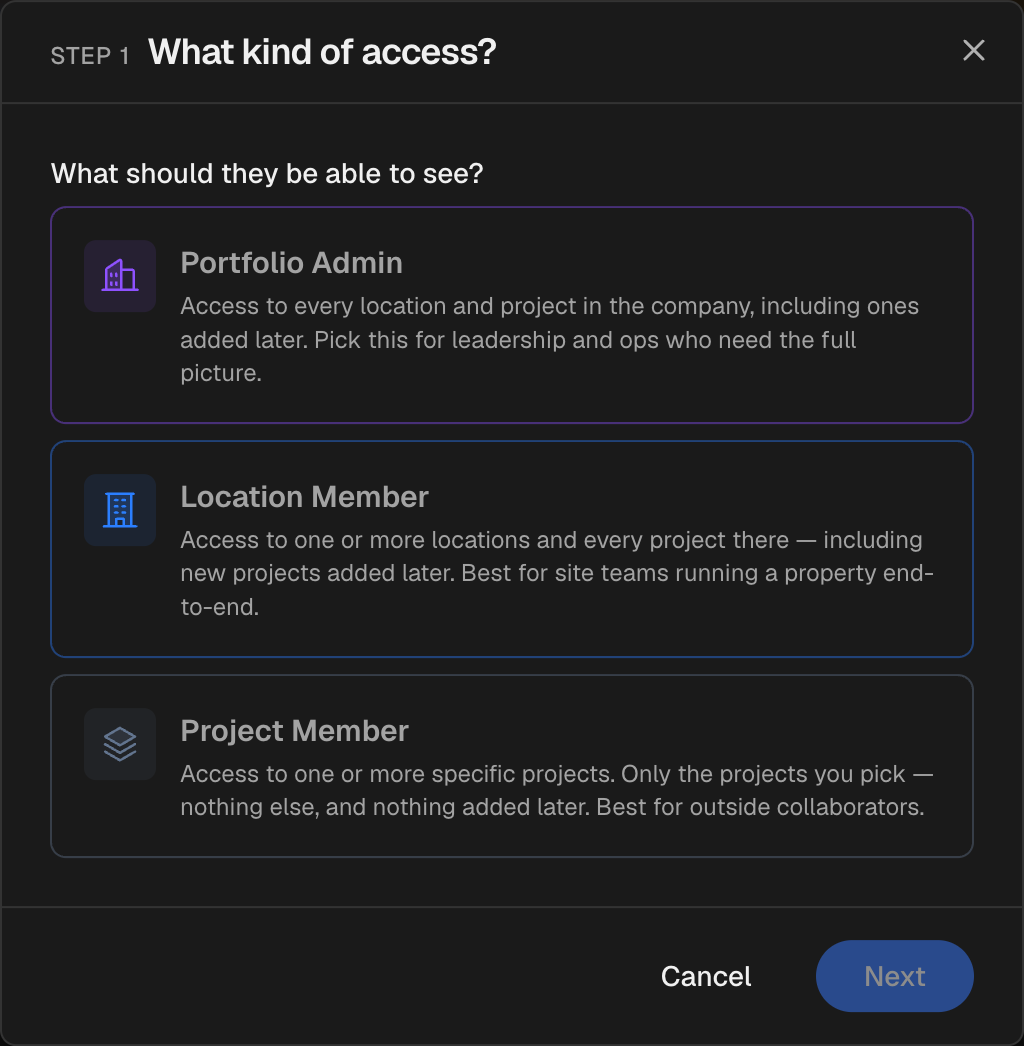
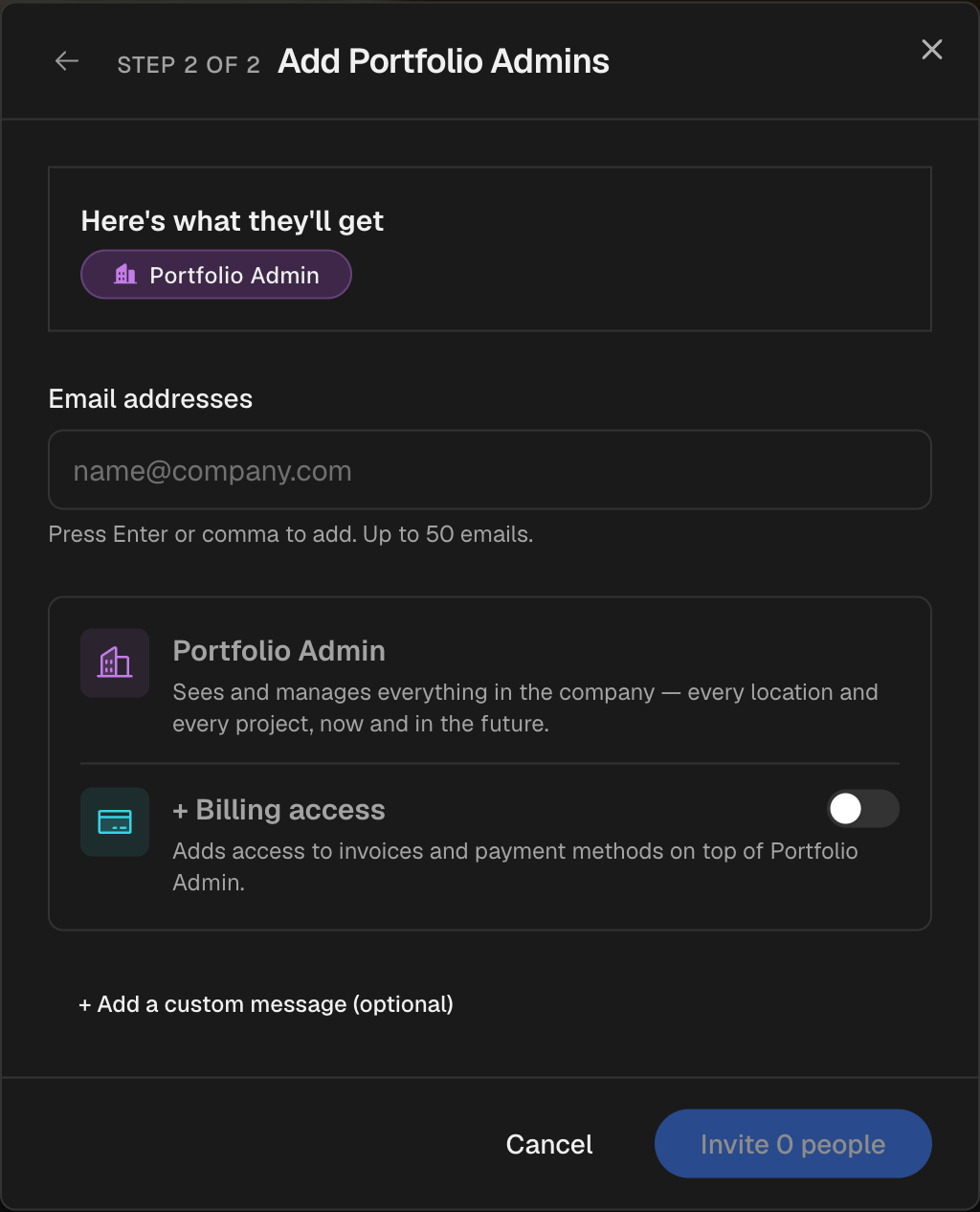
- Portfolio Admin — access to every location and project in your organization, including ones added later. Best for leadership and operations who need the full picture. Portfolio Admins can also invite people and manage everyone's access.
- Location Member — access to one or more locations and every project in them, including new projects added to those locations later. Best for site teams or regional managers running a property end-to-end.
- Project Member — access to specific projects only — nothing else, and nothing added later. Best for outside collaborators like a contractor or architect who should see one thing and nothing more.
Access flows down, never up
A Portfolio Admin sees everything. A Location Member sees all projects at their location. A Project Member sees only their project. Granting someone a lower level never exposes anything above it — a Project Member can't see other projects, and a Location Member can't see other locations.
What they can do: the three permission bundles
For Location and Project members, you also choose a permission bundle. Each bundle includes everything in the one before it.
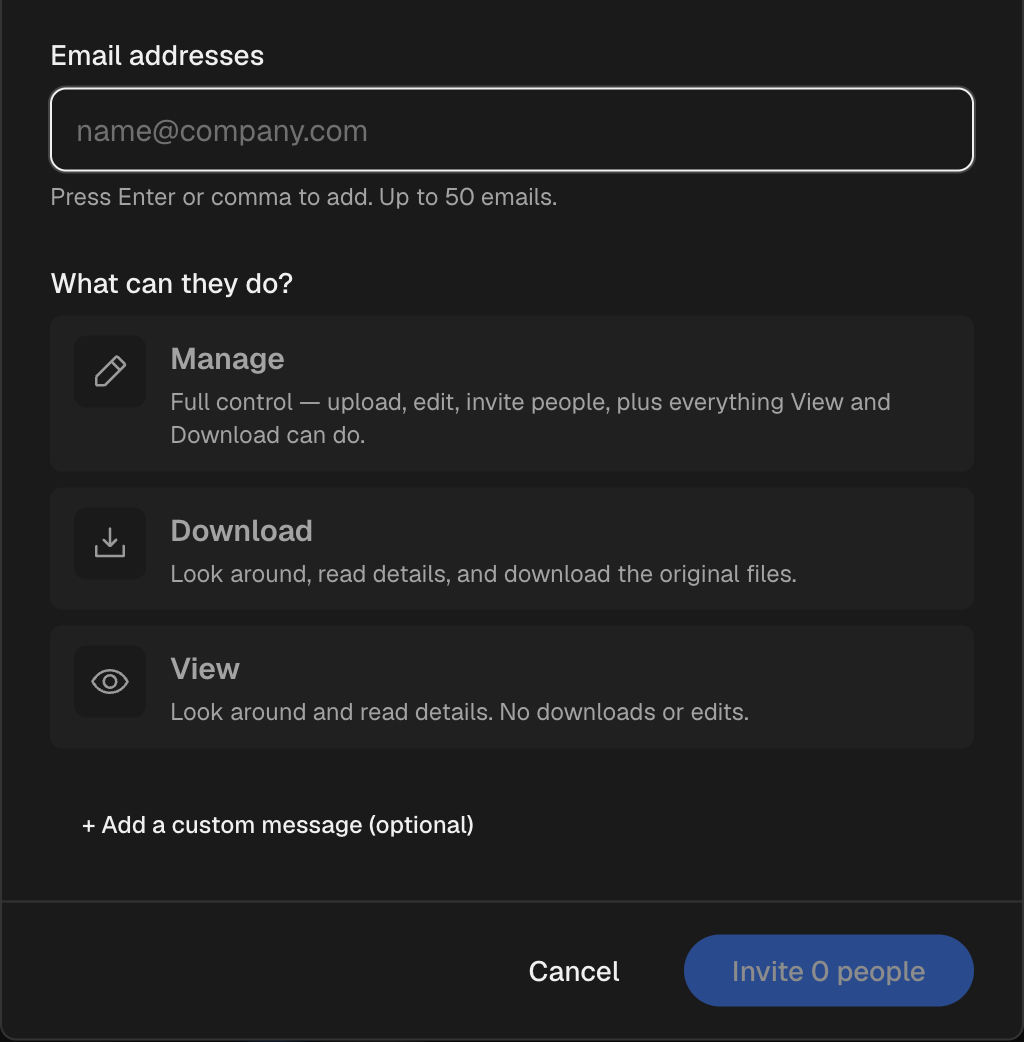
- View — browse and read details. No downloads, no edits.
- Download — everything in View, plus download the original files (point clouds, models, plans).
- Manage — everything in Download, plus upload, edit, delete, and invite other people below them.
Manage cascades, too
A Location Member with Manage has full control over all projects at that location — current and future — and can invite Project Members there. A Project Member with Manage can only act within their one assigned project.
Seeing costs: Billing access
Billing is a separate, optional add-on that you can turn on for any role. It adds access to invoices and payment methods — across the whole company for a Portfolio Admin, or for the specific location or project for a Location/Project Member. Leave it off and the person never sees pricing or payments.
Projects keep data separate
A location can hold several projects — a SCANIT scan, a BIMIT model, a Site Monitoring campaign. Projects are the unit that keeps data separated within a single building.
Open by default, restrict when you need to
New projects are visible to everyone with access to the location. For sensitive work, an admin can restrict a project so only the people assigned to it can see it — everyone else won't even know it exists. This lets one building hold, say, BIM deliverables and confidential site-monitoring data without one team seeing the other's.
This is why you rarely need duplicate locations: instead of "383 Madison" and "383 Madison SM," you keep one location with two projects and assign different people to each.
Where to go next
- Invite teammates — the step-by-step invite flow
- Share a location or project — share straight from a location or project
- Change or reduce access — adjust someone's level or bundle later
- Manage members & invitations — see who has access, remove people, resend invites