When your deliverables are ready, you can download them from a location's Download Files window — point clouds, BIM models, CAD floor plans, and images, all in one place. Files appear here as soon as processing is complete.
Before you start
- You need download permission for the location. If you don't, the download action is locked and you'll see a tooltip explaining who can help.
- Open the location whose files you want.
Downloading your files
1
Open the location
From your dashboard, open the location that has completed deliverables.
2
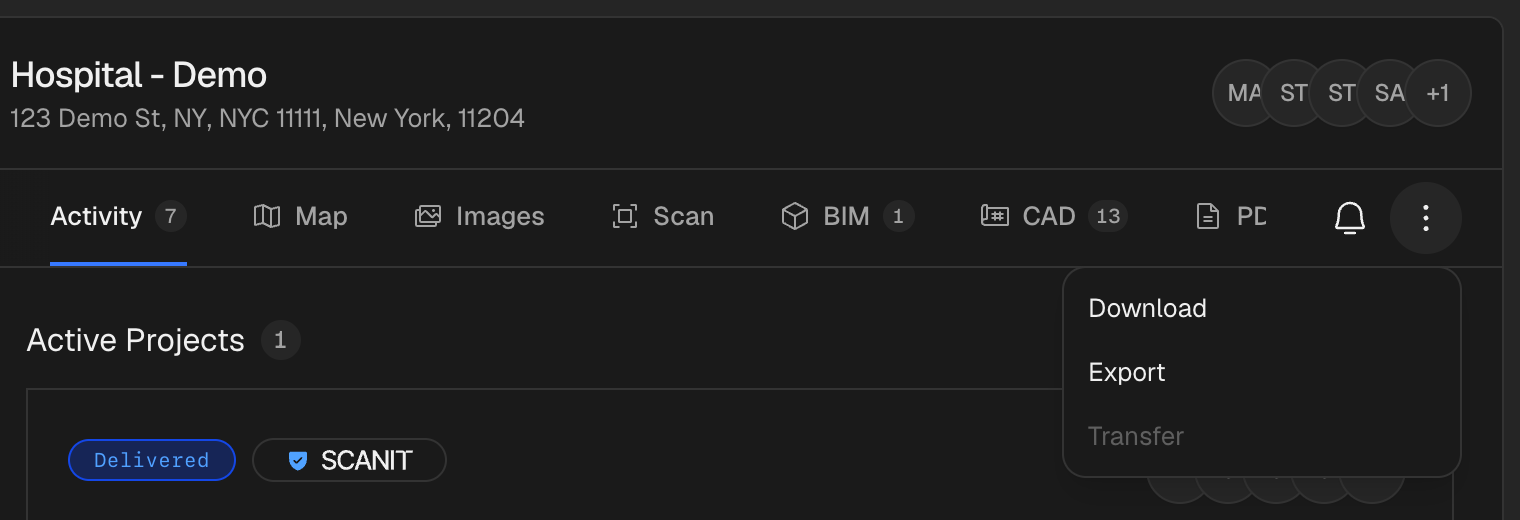
Open the actions menu and choose Download
In the top-right of the location header, click the three-dot (⋮) menu, then select Download. The Download Files window opens and lists everything that's ready, grouped by type.
3
Find the file you need
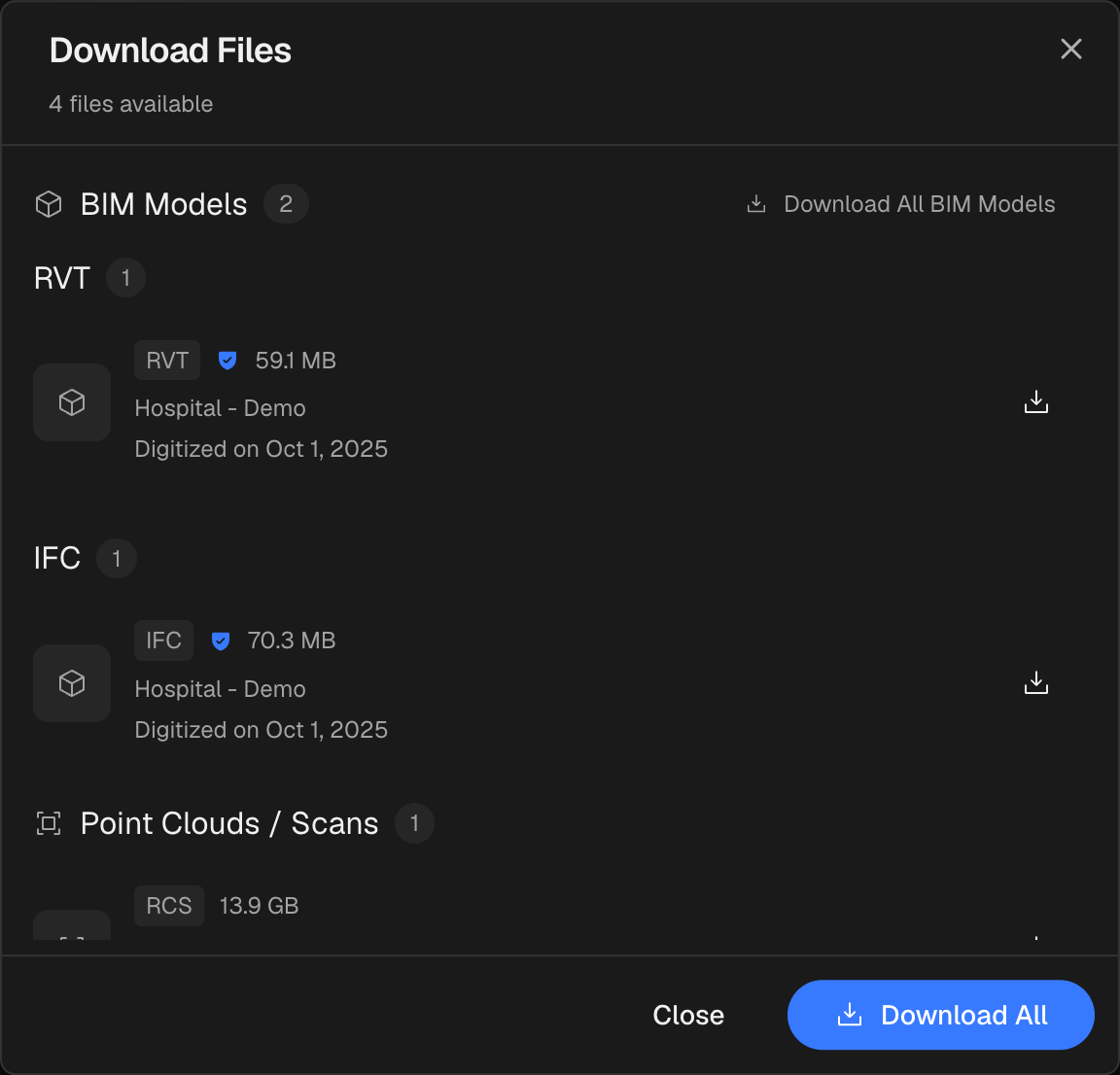
Files are organized into groups such as BIM Models, Point Clouds / Scans, Floor Plans (CAD), Plan Images, Images, and Other Files. Each row shows the file type, size, and the date it was digitized or uploaded. The newest model in a group is marked Latest.
4
Download one file, a group, or everything
Click the download icon on any row to get a single file. Use Download All in a group header to get every file in that group, or the Download All button at the bottom to download everything available.
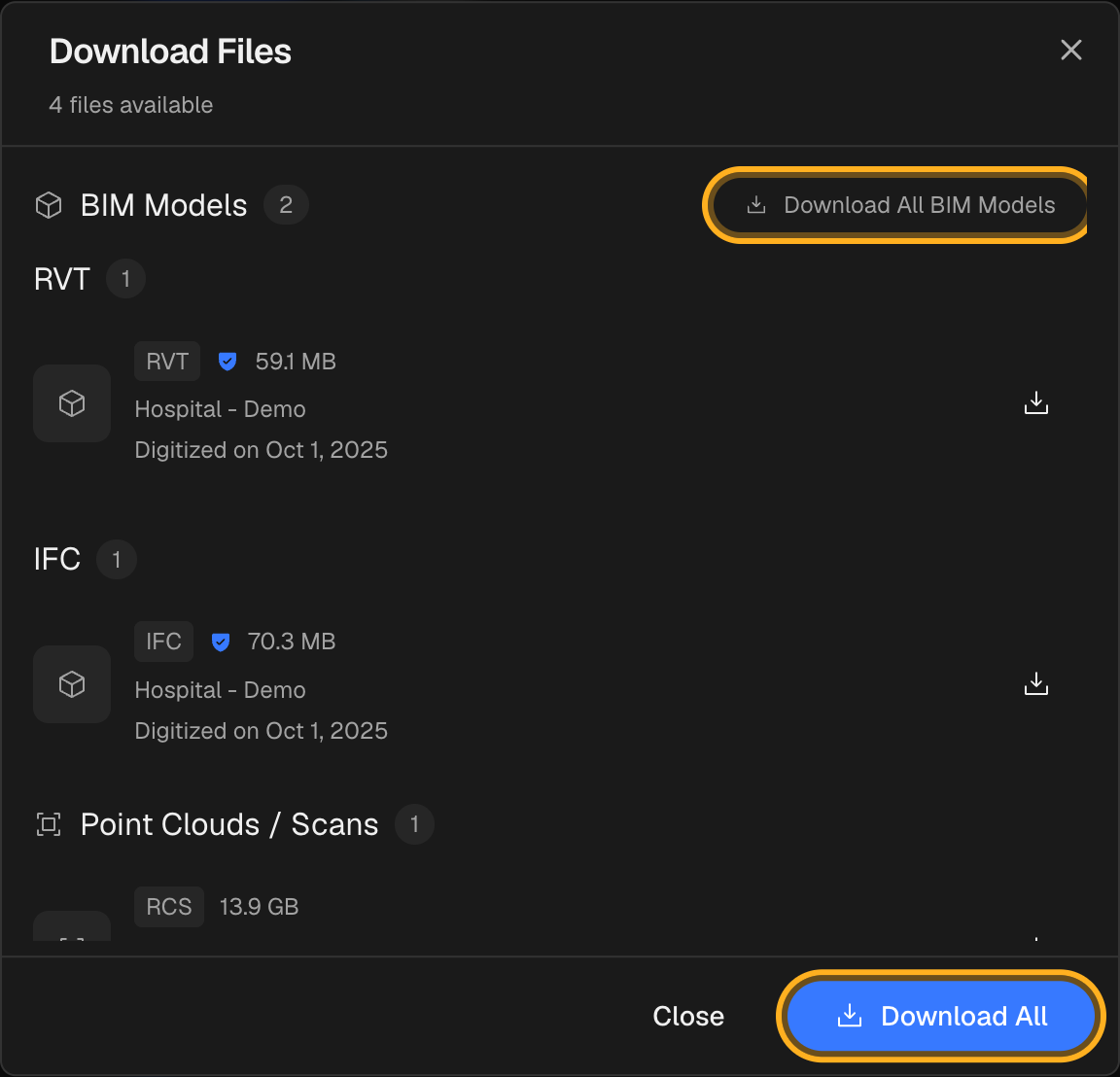
The Download All button in the bottom-right grabs every available file in one click. To pull just one category instead, use the Download All button in that group's header — for example, Download All BIM Models.

What you can download
- BIM Models — Revit (RVT) and IFC models. Verified models carry a BIMIT Verified badge.
- Point Clouds / Scans — registered scan data in formats such as RCS, E57, and Potree.
- Floor Plans (CAD) — DWG and DXF. If a combined CAD package exists, it appears as All CAD Files.
- Plan Images — key plans, 2D plans, RGB scans, and segmentation images.
- Images — site photos and image bundles.
- Other Files — any additional packaged files.
What's not in this window
- PDF reports are downloaded from the location's PDF tab, not the Download Files window.
- Virtual tours (such as Matterport walkthroughs) are external links you open in the browser rather than files you download.
Files still processing
Only completed files appear in the window. If a deliverable is still being processed it simply won't be listed yet — check back once it's ready.
Project marked Delivered but no files to download?
The Delivered status tracks the service order itself, which is separate from files being packaged into this window. A completed project can show No files available while deliverables are still being finalized for download. Reopen the window after a few minutes — and if it stays empty when you expected files, contact your IPX account team so we can make sure your deliverables are released.
Downloading many files at once
Files download one after another, so a bulk Download All can take a moment for large point clouds. Your browser may ask permission to download multiple files — choose Allow to let them all through.
Don't see a download button?
If a file shows a lock icon or the Download action is disabled, your account doesn't have download permission for that location. Ask a team admin to grant you Download access.