Inviting someone sends them an email invitation with the access you choose. Once they accept, their access is live. This guide walks the invite wizard step by step. For the bigger picture of levels and bundles, see How sharing & access works.
Before you start
- You need to be a Portfolio Admin, or hold Manage access on the location or project you're inviting to. Otherwise the Invite members button is disabled with a note on who to ask.
- Invitations are sent by email and are valid for 14 days.
Open the wizard
Click the gear icon in the sidebar header to open Settings, then go to the Members tab and click Invite members. You can also invite from a location's people panel or from a project — those start pre-scoped to that location or project, so the wizard skips ahead.
1
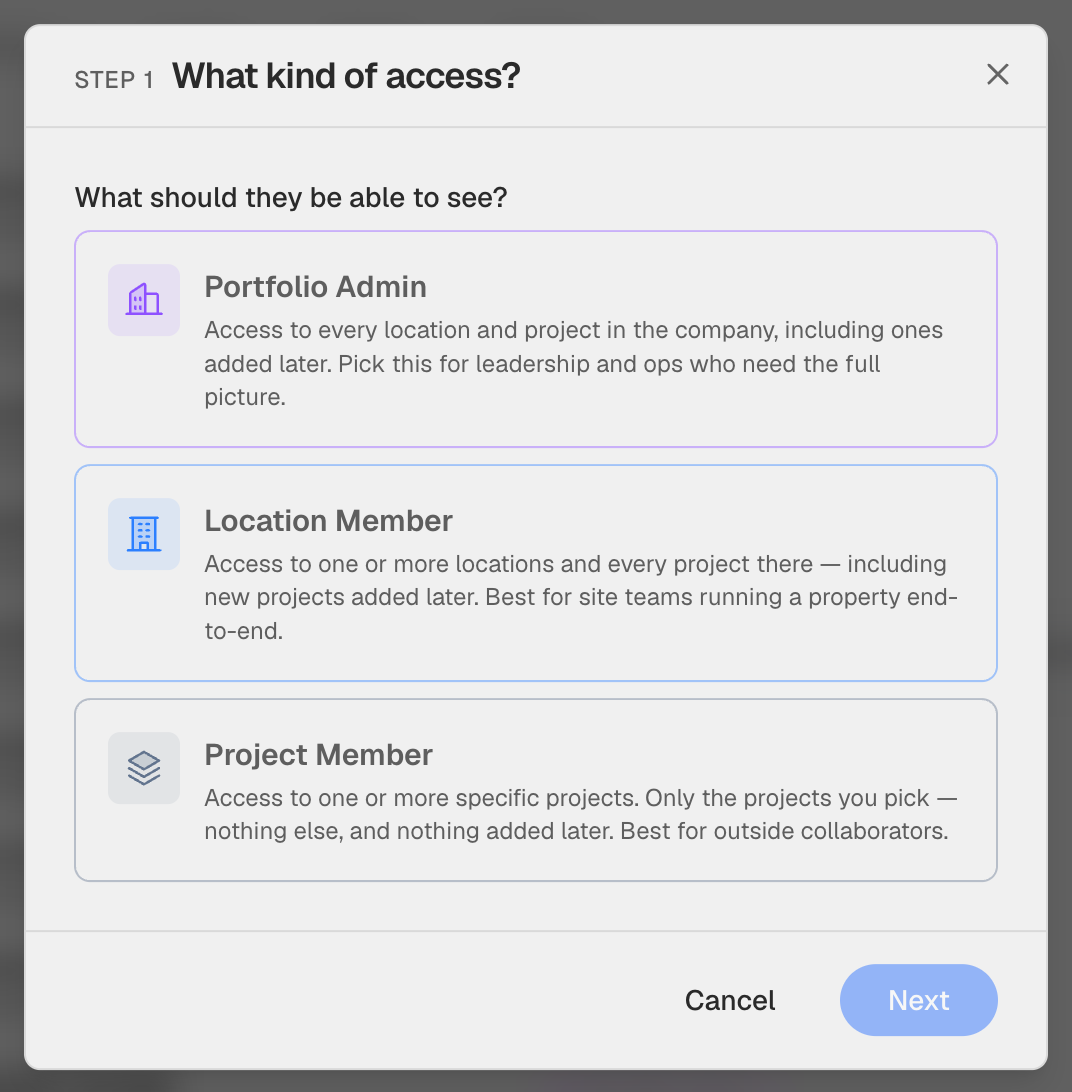
Pick the access type
Choose Portfolio Admin (everything in the company, including items added later), Location Member (one or more locations and all their projects), or Project Member (specific projects only — nothing added later). Each card explains exactly what that level can reach.
2
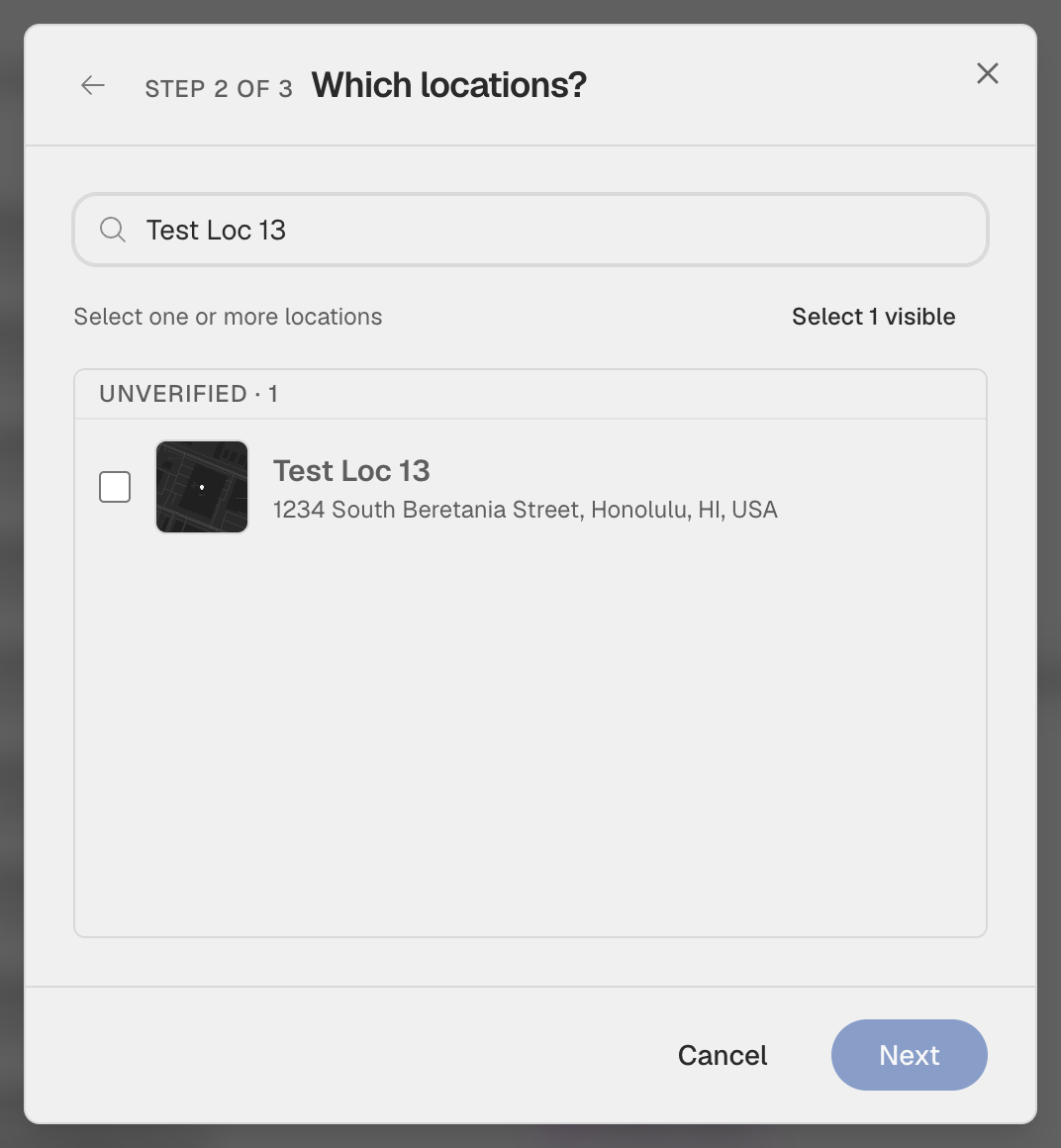
Pick the locations or projects
For a Location invite, search and check one or more locations. For a Project invite, pick the specific projects — you can pull projects from more than one location in a single invite. Portfolio Admin skips this step since it already covers everything.
3
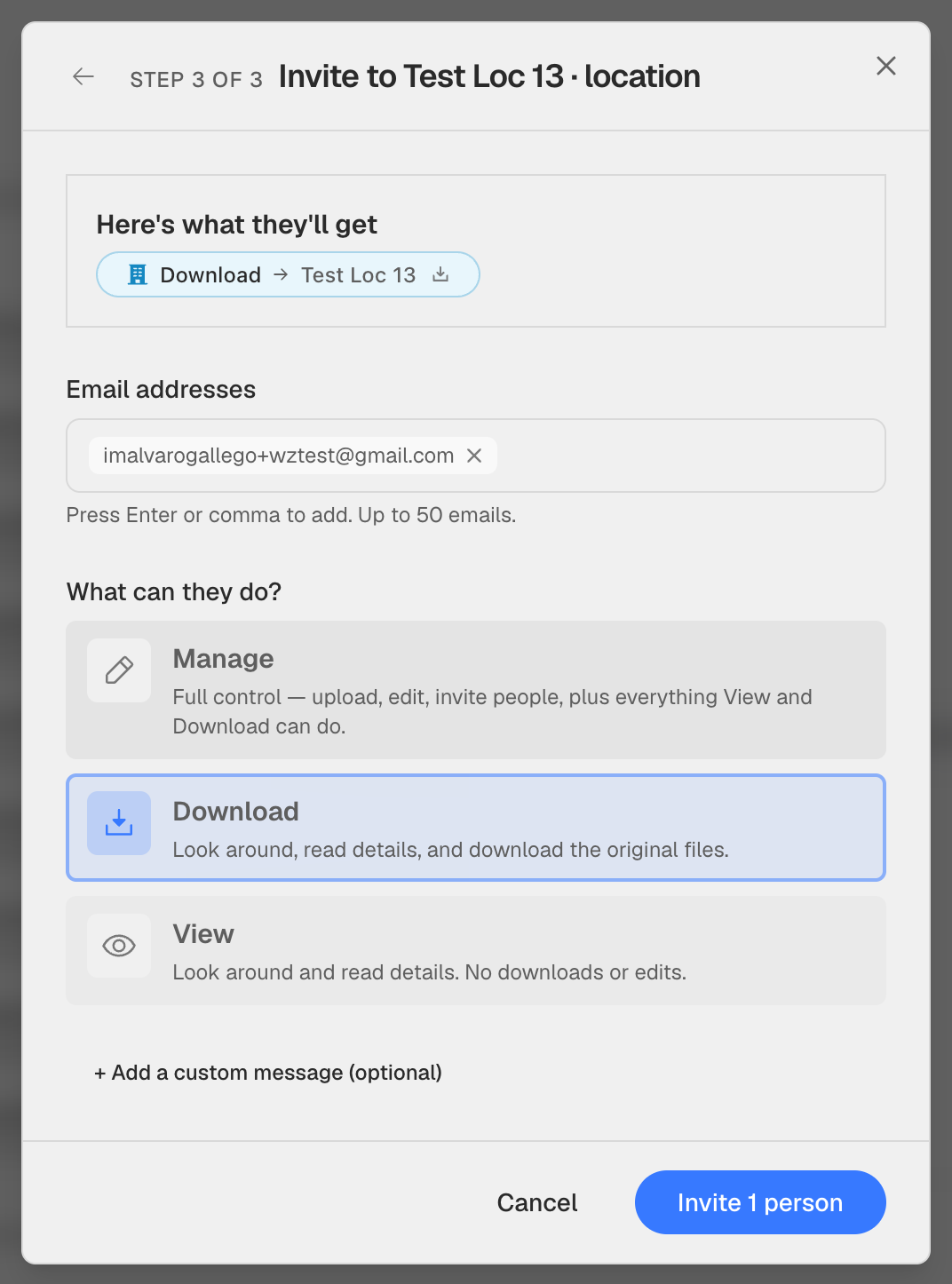
Add emails, pick the bundle, send
Enter one or more email addresses (press Enter or comma between each — up to 50). Choose the bundle: Manage (full control, including inviting others), Download (look around and download originals), or View (look around only). The blue card at the top summarises "Here's what they'll get" as you build the invite. Optionally add a personal message, then click Invite N people to send.
Everyone receives an email with a link to accept, and a toast confirms the invites went out. They show up under the Pending tab in Settings → Members until they sign in.
Inviting several people at once
Up to 50 emails in one invite. They all receive the same access type and bundle — so group people who need the same setup, and run a second invite for anyone who needs something different.
If an invitation doesn't arrive
Some corporate email systems block automated messages, which can cause an invite to bounce. Open the person from Settings → Members and click Resend invitation in the yellow pending card — see Manage members & invitations. If it keeps bouncing, contact support and we can activate the account manually.
Need to adjust someone's access after they've accepted? See Change or reduce access.