Manage project billing from the IPX Admin panel
Every project has an IPX Admin section with a Billing accordion where IPX staff manage the project's commercial state end-to-end: change orders, Stripe invoices, and per-line pricing overrides. This guide walks through where it lives and what each block does.
Who can see this
The IPX Admin section only appears for users with the IP admin flag. Customers and regular org members never see it — the section chip is hidden and every query behind it is rejected server-side without IP admin access.
1
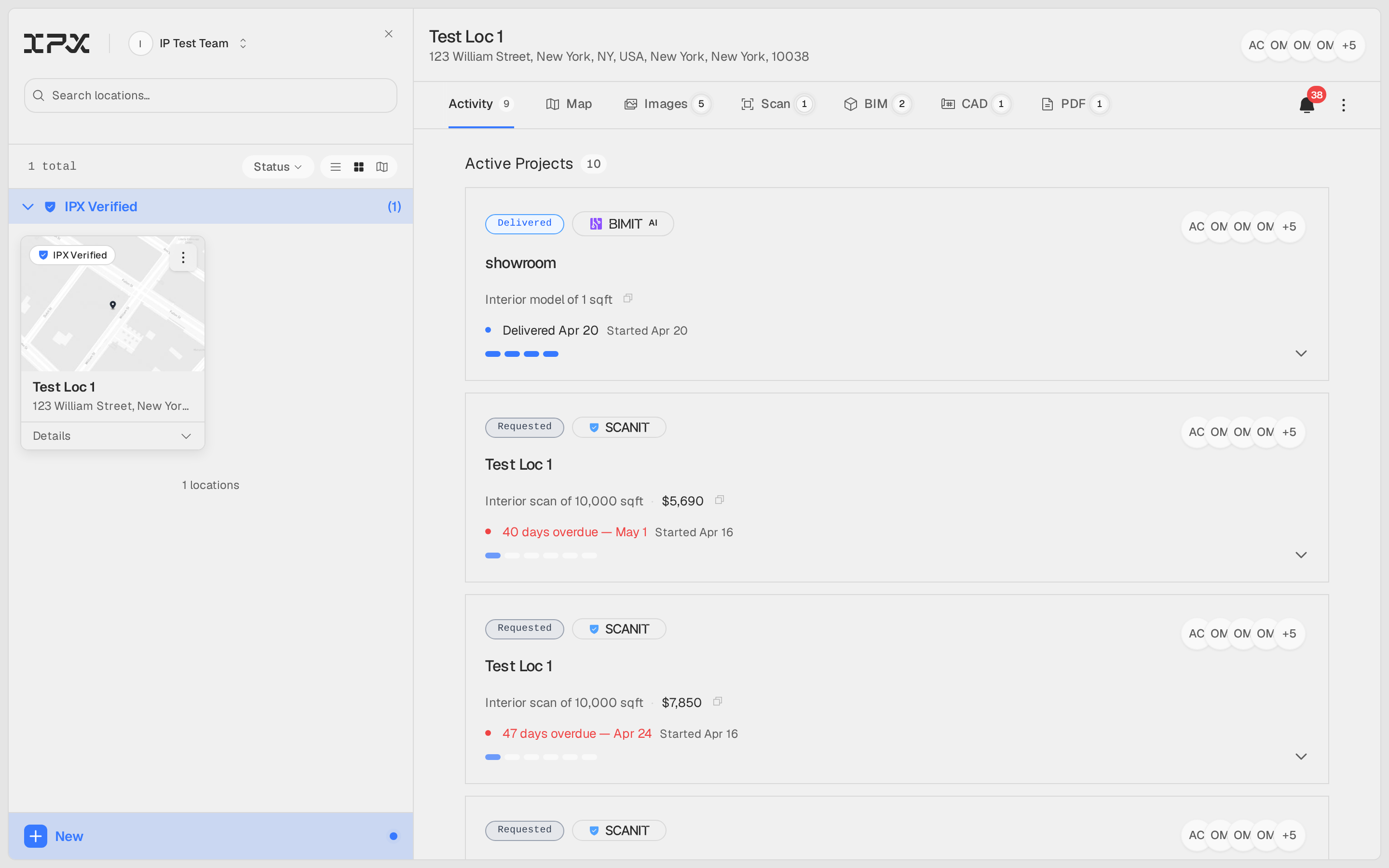
Open the project's Activity tab
Select the project's location from the sidebar, then click the Activity tab in the location header. Projects are listed under Active Projects. The Activity tab requires Manage access at the location — members without it see the tab disabled.
2
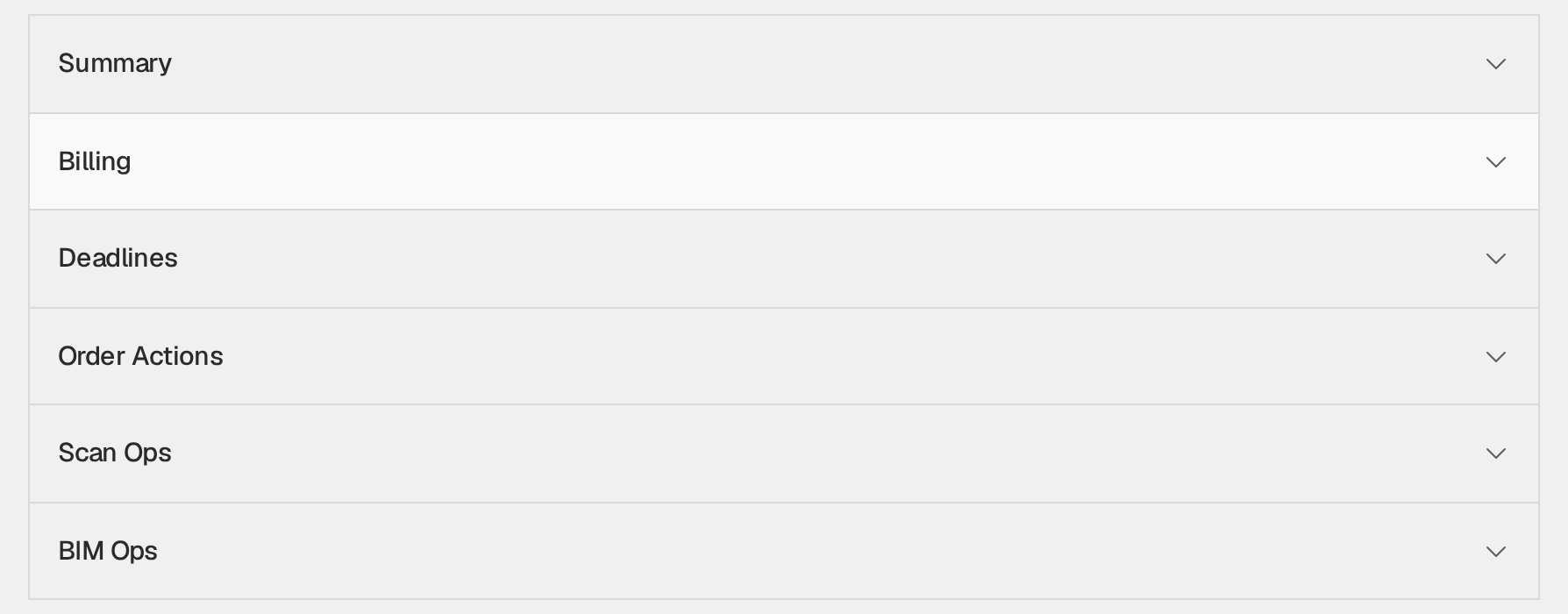
Open IPX Admin and expand Billing
Click the project card to expand it, then click the IPX Admin chip in the section row (next to Timeline and References). In the accordion that appears, click Billing. The Billing panel stacks four blocks: Change Orders, Invoices, Current Revenue & Budget, and Pricing Overrides.

3
Review change orders and contract value
The Change Orders block summarizes Active COs, the CO total, and the Effective contract value (base contract plus all active change orders). Click any change order row to open its detail drawer. In-flight CO-EDIT drafts show a ⋮ menu with Resume (reopens the edit wizard) and Discard (voids the draft).

4
Manage Stripe invoices
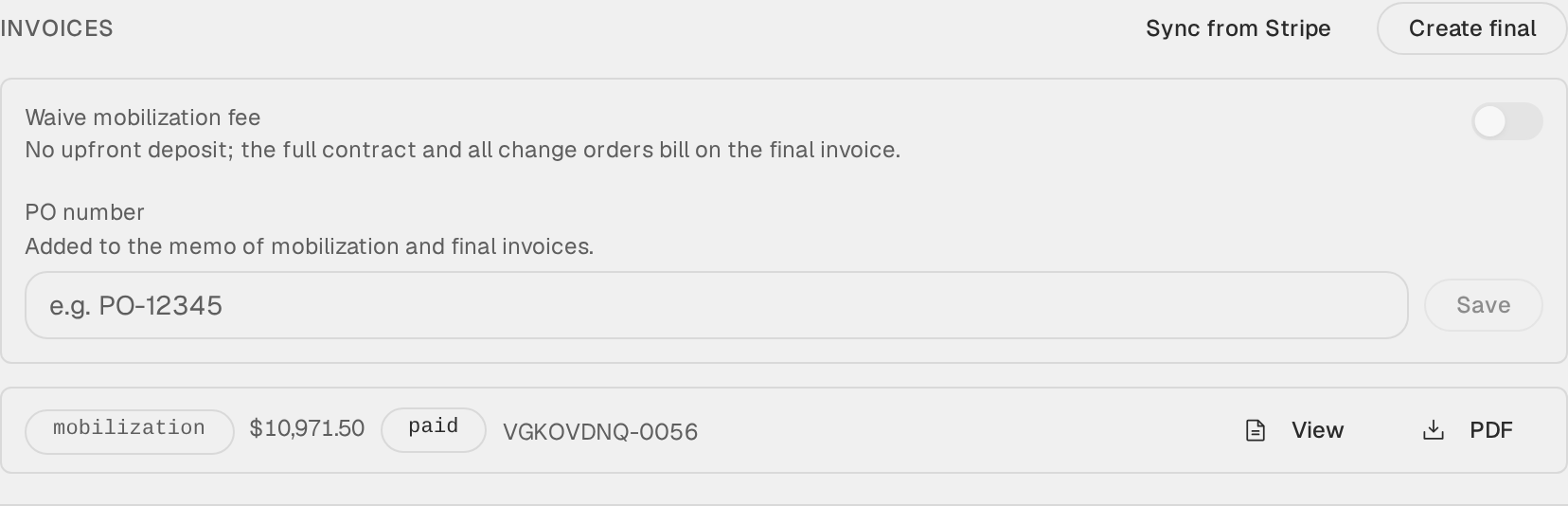
The Invoices block is the reference point for every invoice on the project — each row shows the type, amount, and status, with View / PDF links that resolve fresh Stripe URLs on click.
Mobilization and final invoices are normally created automatically by the order lifecycle: the mobilization invoice when the customer reaches the deposit step after signing, and the draft final when the final payment action spawns. The buttons here are for manual intervention — when automation didn't run, or an invoice needs to be re-issued:
- Create mobilization sends the 50% deposit invoice. The button disappears once a mobilization invoice exists or the fee is waived.
- Create final opens the Send final invoice preview — the remaining 50% plus one line per signed change order. A checkbox optionally pulls in change orders still pending signature; change orders awaiting internal approval always block sending.
- Sync from Stripe imports invoices created directly in Stripe and matches them to this project.
- The ⋮ menu on unpaid invoices offers Re-create (mobilization/final only) and Void. Voiding requires a reason for the audit log, and voiding a final releases its change orders back so they bill on the next final.
- Click an invoice's type badge to reclassify it (for example, a hand-made Stripe invoice synced as custom that should drive the final-payment flow).
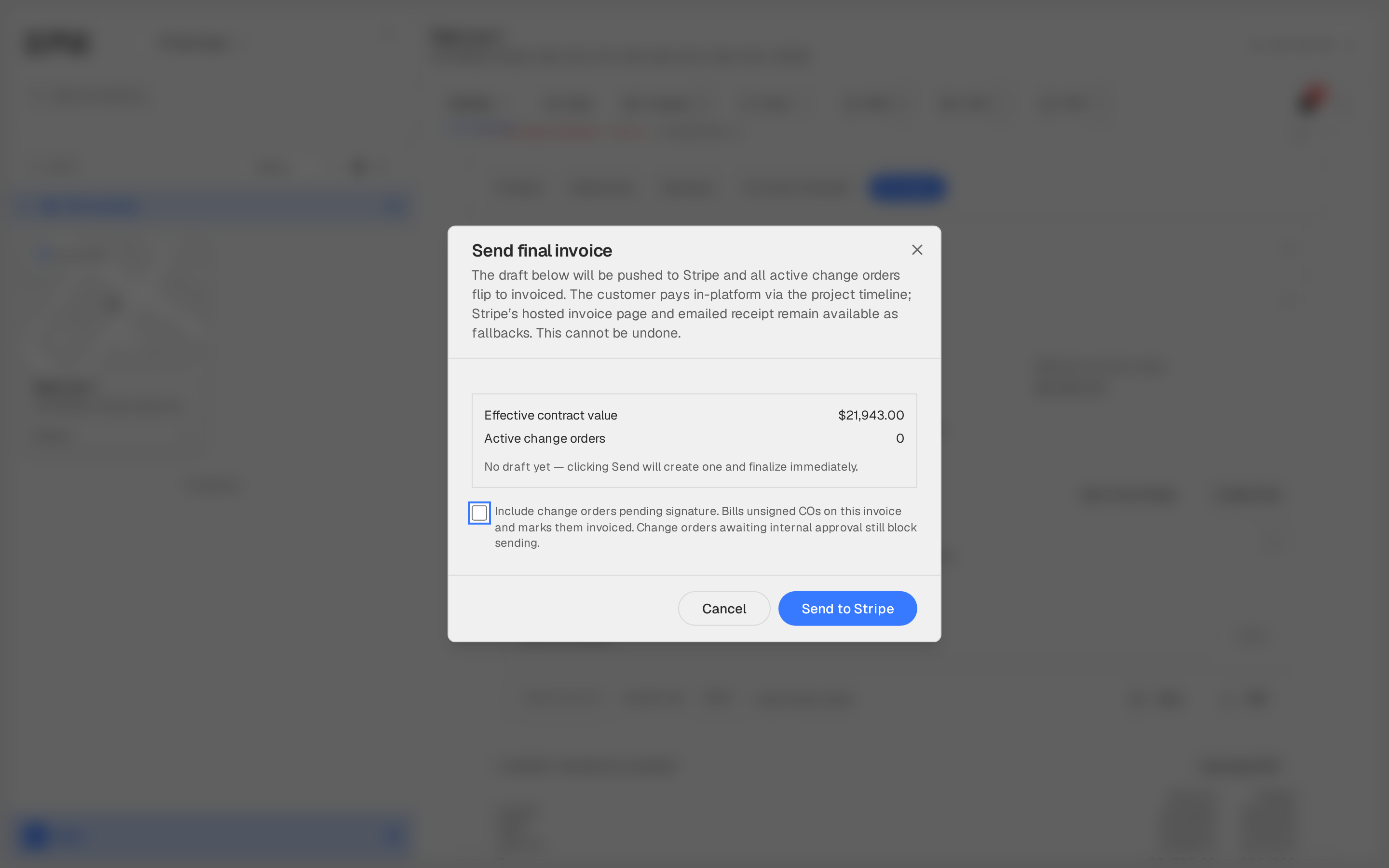
Sending a final invoice is one-way
Send to Stripe finalizes the invoice and flips active change orders to invoiced — it cannot be unsent. If you need to rebill, void the final (its change orders revert automatically) and send a fresh draft.
5
Set billing options
In the settings card inside the Invoices block:
- Waive mobilization fee skips the upfront deposit; the full contract and all change orders bill on the final invoice. It cannot be waived while a sent mobilization invoice exists — void that first.
- PO number is added to the memo of mobilization and final invoices so the customer's AP team can match them.
6
Override pricing and download the estimate
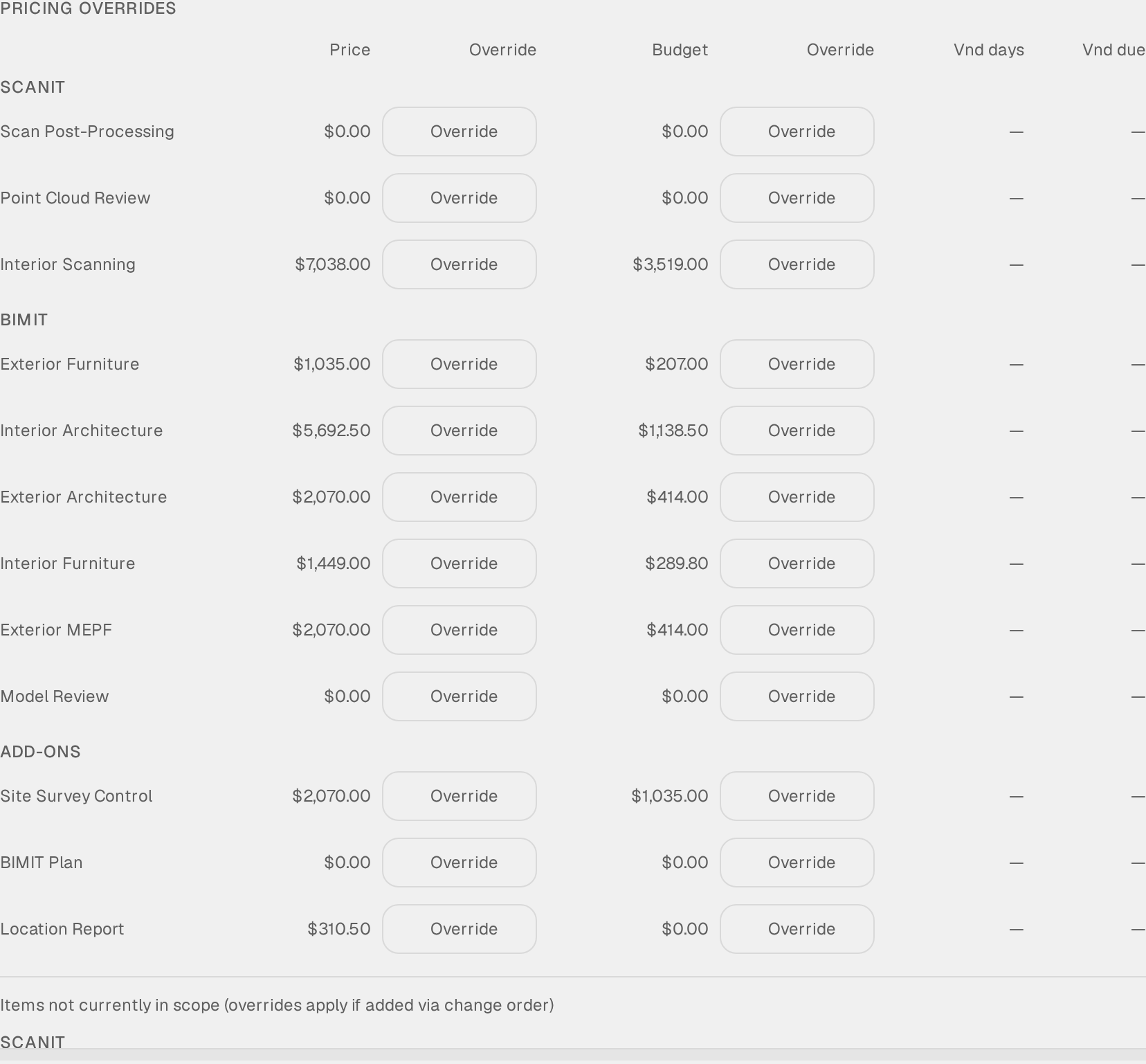
Current Revenue & Budget totals SCANIT, BIMIT, and Add-ons live as you edit. Under Pricing Overrides, each line item shows the calculated price and budget with an Override field for each — type a value to override, or clear it (×) to fall back to the calculated number. Items not currently in scope can be pre-overridden and take effect if a change order adds them. Click Save Overrides to persist, and Download PDF to export the project estimate.

Check your Stripe mode
The invoice list only shows invoices from your current Stripe mode (live vs test). If an invoice seems missing, or an action fails with a mode-mismatch error, toggle Stripe test mode in the floating admin panel to match the mode the invoice was created in.
Overrides and signed contracts
On projects with a pricing snapshot, overrides save per line item and automatically refresh any in-flight CO-EDIT so the contract delta stays correct. The snapshot version and date appear next to the Pricing Overrides heading.