This guide walks you through creating a new IPX Platform account. You can sign up using your Google account, Microsoft account, or an email and password. Once registered, you will verify your email address before accessing the platform.
Prerequisites
- You do not yet have an IPX Platform account
- You have access to the email account you plan to register with
1
Open the sign-up page
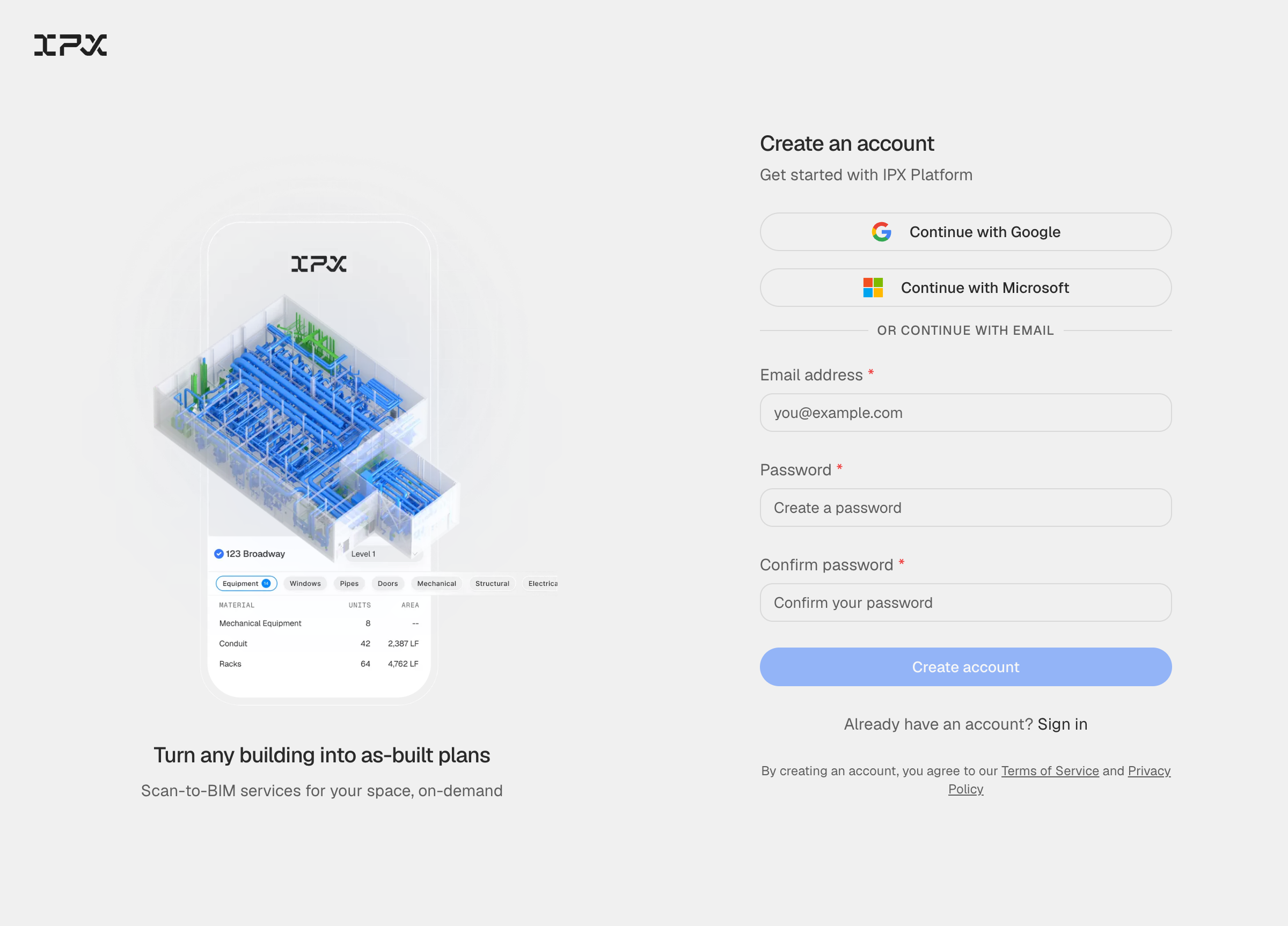
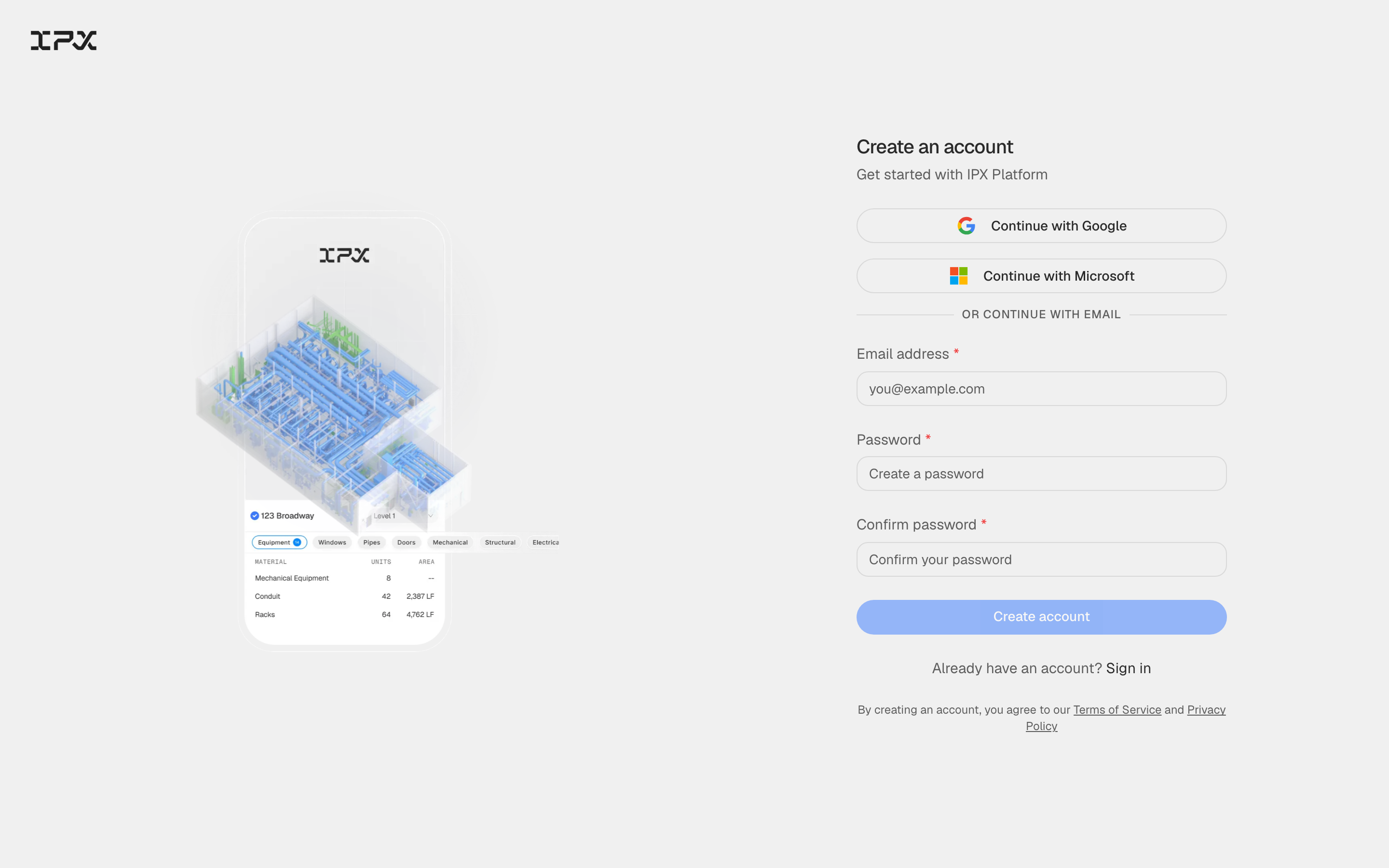
Go to the sign-up page. You will see three ways to register: Continue with Google, Continue with Microsoft, or an email and password form below the divider. Pick whichever method fits how you already manage your work logins.
2
Choose your sign-up method
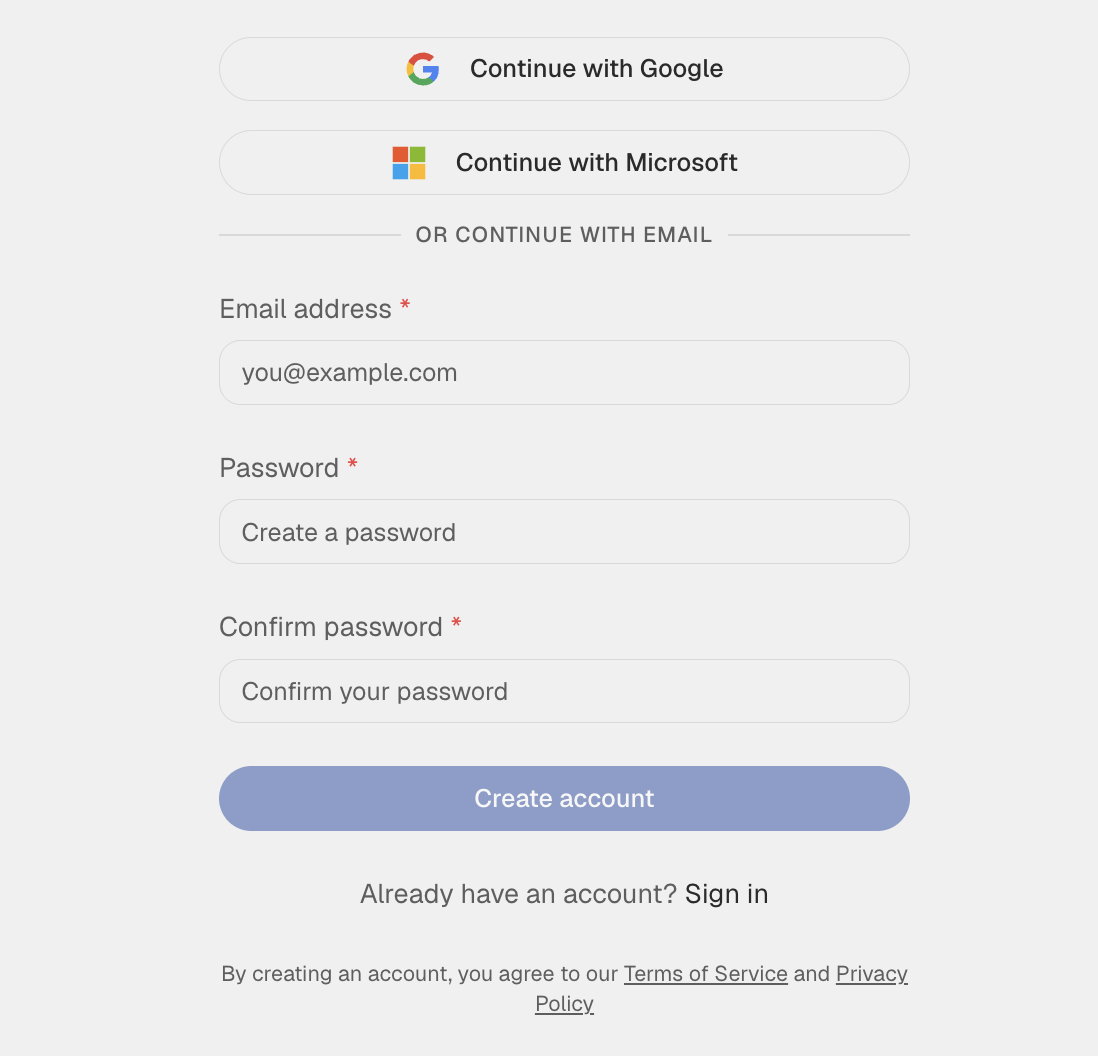
Click Continue with Google or Continue with Microsoft to register through your social provider — your account is created and verified automatically. To register with email, fill in the Email address, Password, and Confirm password fields below the divider.
3
Create your account
After filling in your email and password, click Create account. The button stays disabled until both password fields match and meet the minimum security requirements. By creating an account you agree to the Terms of Service and Privacy Policy linked below the form.
4
Verify your email address
IPX Platform sends a verification email to the address you registered with. Open that email and click the confirmation link to activate your account — once verified, you are taken straight into your dashboard.
Check your spam folder
If the verification email does not arrive within a few minutes, check your spam or junk folder. The message comes from a no-reply address tied to IPX Platform.
Social login skips email verification
When you sign up with Google or Microsoft, your email is verified through that provider. You will land directly on your dashboard without a separate confirmation step.