IPX is built around two things: the locations sidebar on the left, and the viewer that fills the rest of the screen. Pick a location in the sidebar and its data opens in the viewer. This guide covers how to find what you need quickly.
The locations sidebar
1
Pick your organization
The switcher at the top of the sidebar shows which organization you're in. Click it to switch between your organizations. A Demo Portfolio is always available if you want to explore sample buildings.
2
Search and group your locations
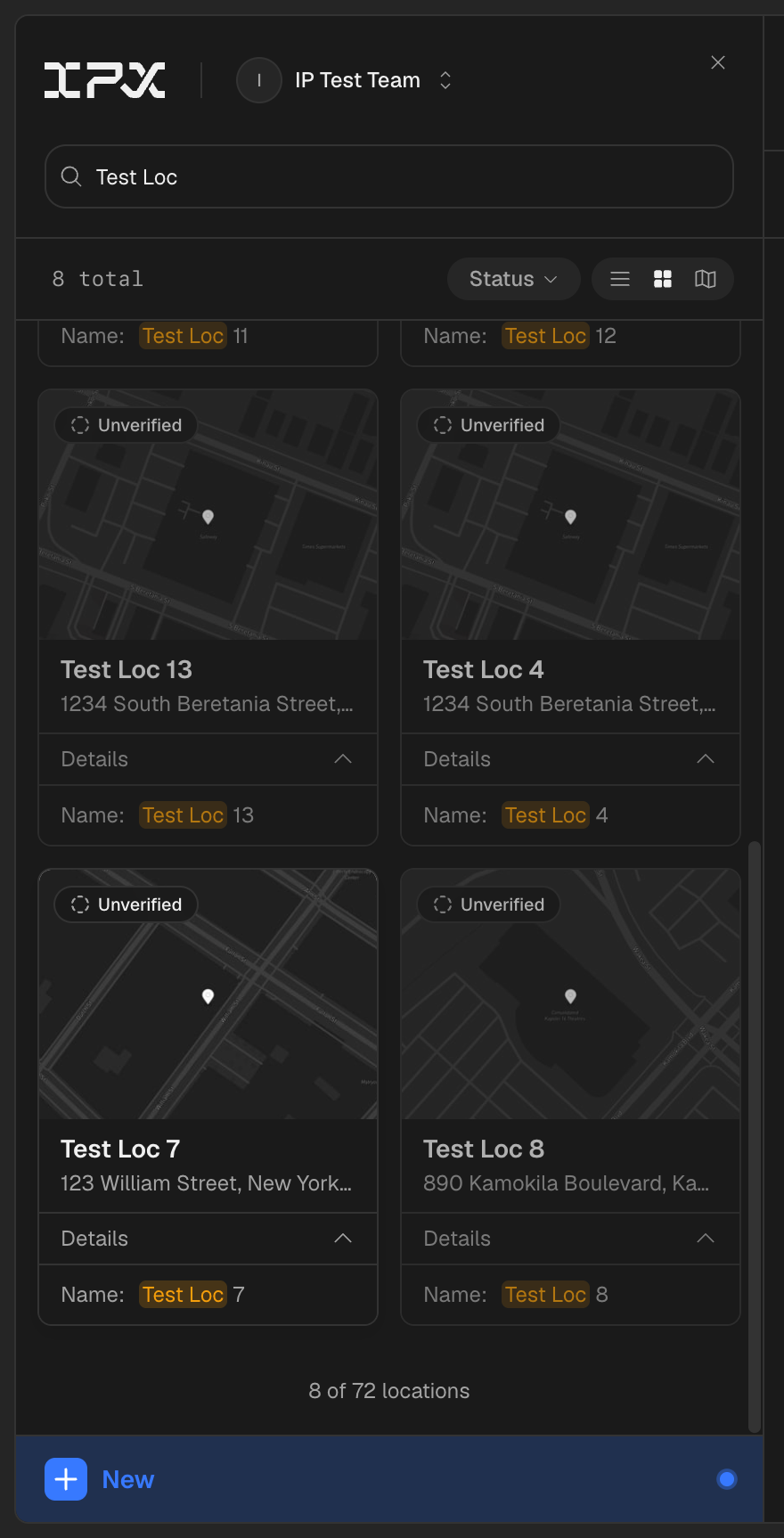
Type in Search locations... to filter by name, address, or even project details; a Matched by hint explains less obvious results. Use the group control to organize the list by Status, Space Type, or State. Grouped by status, locations fall into In Progress, IPX Verified, and Unverified.
3
Read the location cards
Each card shows the location's photo, address, space type, square footage, levels, and a status badge. In-progress locations expand to show the current order Status and ETA, so you can check on work without opening anything.
4
Open a location
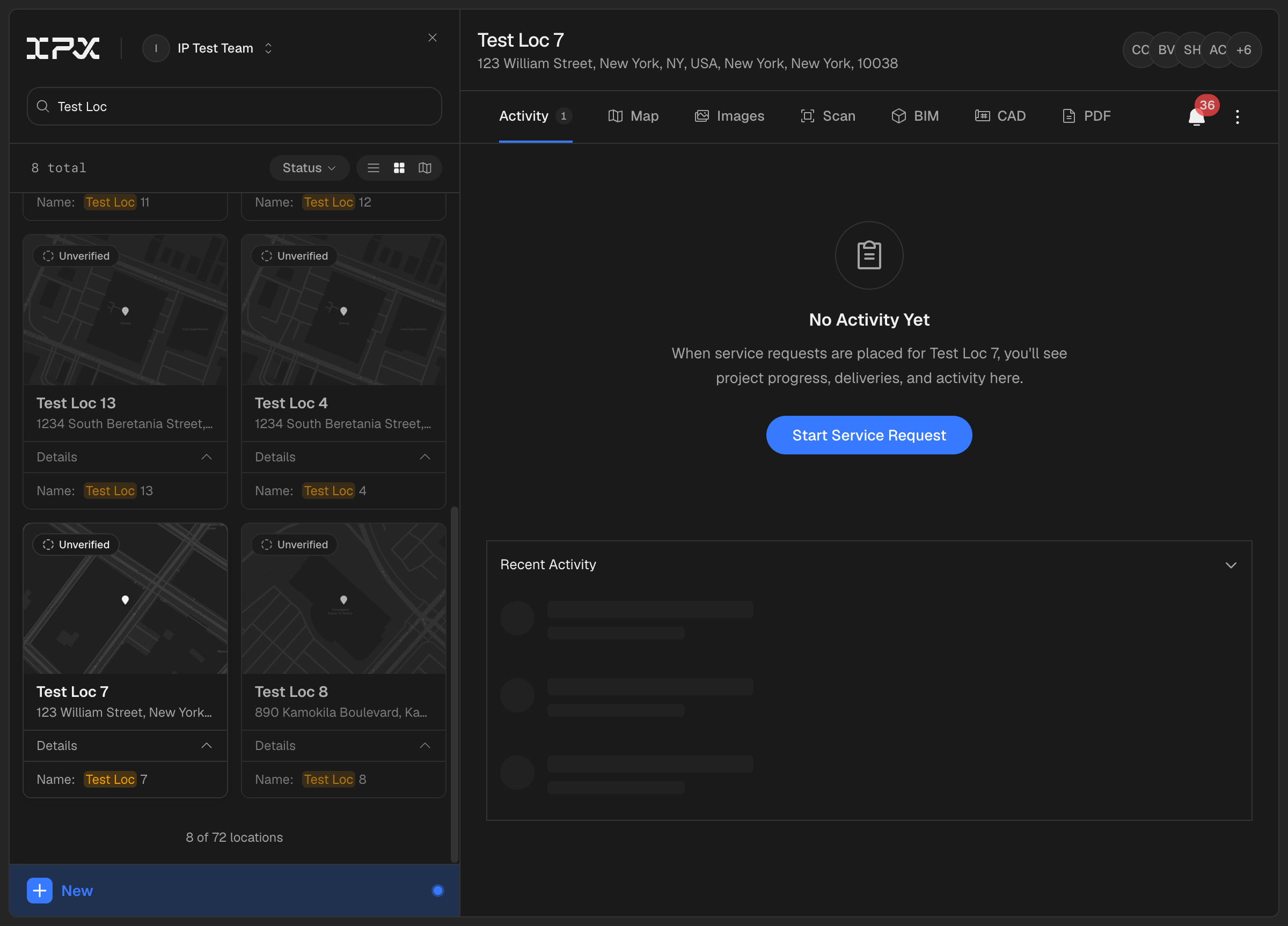
Click a card and the location opens in the viewer. Its tabs run across the top: Activity, Map, Images, Scan, BIM, CAD, and PDF. Activity is where orders are tracked; the rest are your building data. See How to View Your Deliverables for the viewer itself.

The New menu
The sidebar's New button is the launch point for adding things:
- Add Location: add a property to your portfolio.
- Upload Files: add your own documents and models. See Upload Files to a Location.
- Get verified as-builts: order a SCANIT scan or BIMIT model. See How to Order a SCANIT Scan.
- BIMIT AI: turn a point cloud into BIM and CAD automatically.
The map
Prefer geography over lists? The map shows every location as a pin, colored by status: IPX Verified, In Progress, or Unverified. Nearby pins cluster with a count; click a cluster to zoom in, hover a pin for the name, and click one to open a preview card, then the location itself. A status filter lets you narrow which pins show.
Portfolio View
For a portfolio-wide picture, Portfolio Admins can open Portfolio View, a full-screen overview with:
- Headline stats: Locations, Sq Ft Completed, Sq Ft In Progress, and States.
- A List with sortable columns and a Map, switchable at the top.
- Search, Group by, a Project Status filter, and configurable Columns.
- Copy link, so you can send a teammate the exact filtered view you're looking at.
Keyboard shortcuts
Press K to jump into portfolio search and [ to collapse or reopen the sidebar.
Starting from zero?
If your organization has no locations yet, you'll see options to Request Scan-to-BIM or Explore Demo. The demo portfolio is a read-only set of real (anonymized) buildings with tours, scans, models, and plans, and it's the fastest way to see what a finished location looks like.