The CAD viewer lets you take quick measurements directly off a floor plan or reflected ceiling plan without leaving IPX. Use the Distance ruler to verify a single dimension between two points, and the Area polygon to outline a region and read its surface area. Both tools live in the toolbar anchored at the bottom-center of the CAD canvas.
Before you start
Open a location that has at least one CAD floor plan attached, then switch to the CAD tab. The toolbar buttons stay disabled until the drawing finishes loading — wait for the loading skeleton to clear before you start measuring.
Choose the plan type you want to measure
1
Switch between Floor Plan and RCP
The toolbar at the top of the viewer has a Floor Plan / RCP segmented control. Pick Floor Plan for room layouts, walls, and column grids. Pick RCP for ceiling-mounted elements such as light fixtures, diffusers, and sprinklers. Switching plan type loads the matching CAD asset for the same level.

Measure a single distance
2
Activate the Distance ruler
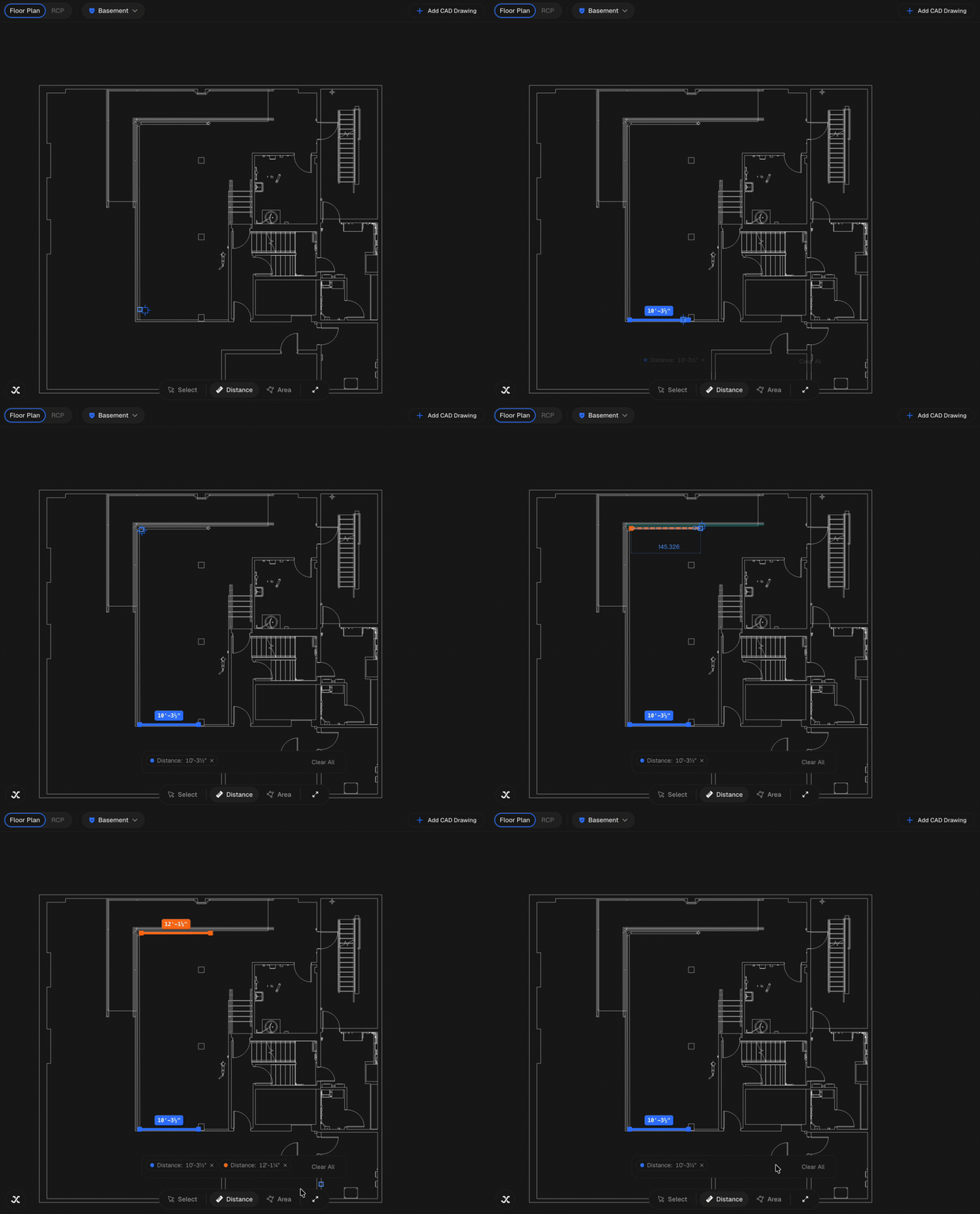
Click the Distance ruler icon in the bottom-center toolbar. The button highlights to show the tool is active and the cursor turns into a crosshair when you hover over the drawing. Distance and Area are mutually exclusive — activating one releases the other.
3
Click two points to measure
Click any first point on the drawing, then click the second point. IPX draws a measurement line between them and shows the distance inline next to the second click. Numbers and units come from the units embedded in the CAD asset, so verify your file is in the expected scale before relying on the value.
Take multiple measurements
You can keep clicking pairs of points without re-activating the tool. Every two clicks records a fresh measurement, and earlier measurement labels stay on screen so you can compare values side-by-side. Open the Measurements panel from the right side of the screen to review the full list.
Measure an area
4
Switch to the Area polygon
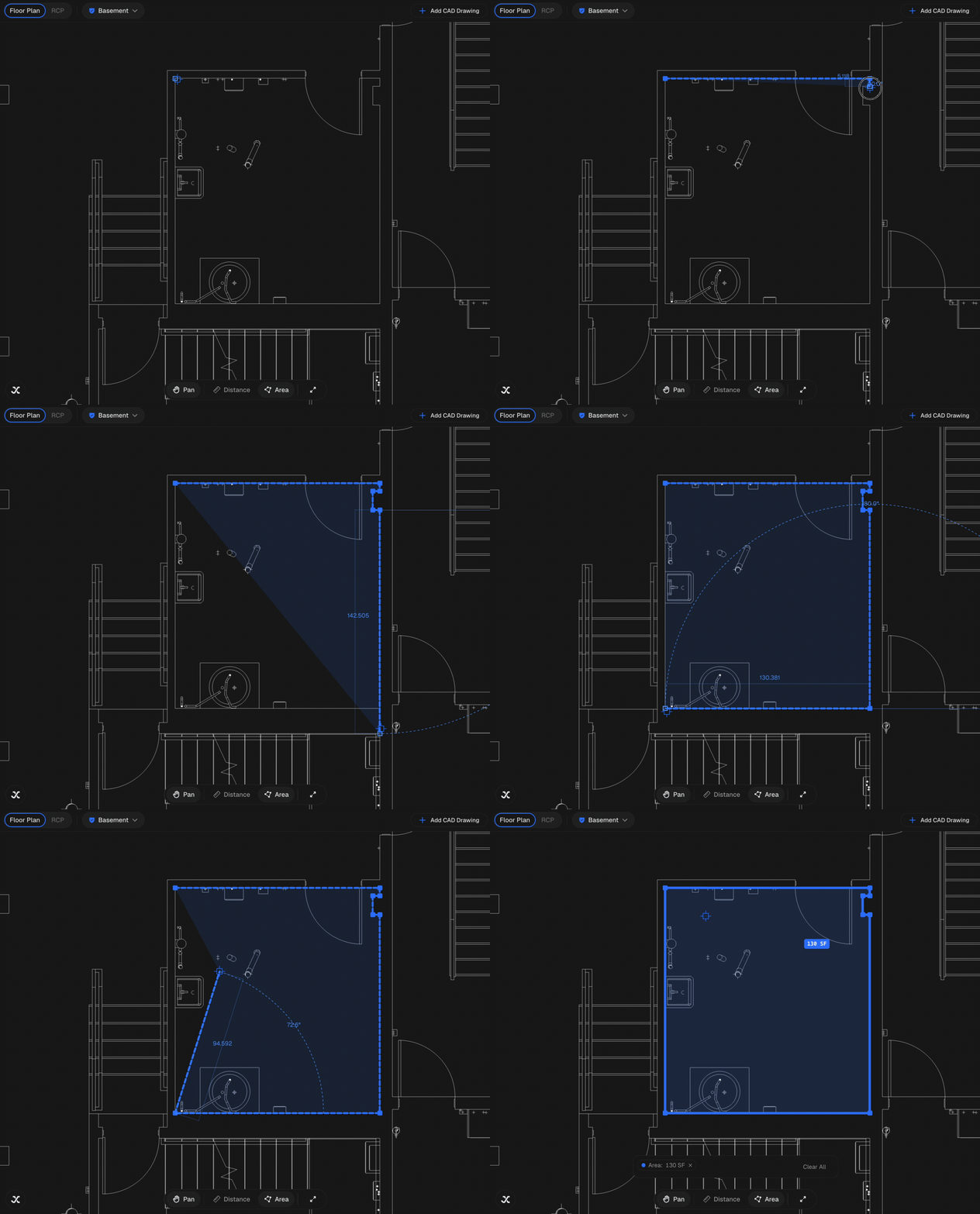
Click the Area polygon icon next to the Distance ruler. The cursor stays as a crosshair, but each click now adds a vertex to a polygon instead of starting a new line.
5
Outline a region and close the polygon
Click three or more points around the edge of the area you want to measure. Double-click the last point to close the polygon — IPX shades the enclosed region and prints the surface area in the polygon's center. A single click on the last point leaves the polygon open and no value appears.
Switching tools clears in-progress work
If you start a polygon, then click the Distance tool before closing it, the unfinished polygon is discarded. Finish the measurement you are on before swapping tools.
Reset the view
6
Click Fit to view
Click the Fit to view icon on the right side of the toolbar to zoom out and recenter the drawing. Existing measurement labels remain on screen — Fit to view affects only the camera, not the saved measurements. Reload the CAD tab if you want to clear the labels entirely.
Related controls
The same toolbar exposes a few other helpers that often pair with measuring:
- Pan / Select — toggle between panning the canvas and selecting elements directly. Distance and Area both override this mode while active.
- Layers — open the layer panel (visible only when the CAD asset declares named layers) to hide layers that clutter the area you want to measure.
- Zoom to layer — when layers are present, the crosshair-with-arrow icon opens a menu that snaps the view to a specific layer's extents, useful for measuring around equipment, MEP runs, or structural lines without scrolling around.