Platform
Turn a 360 walkthrough video into a virtual tour
Film a walkthrough with any 360 camera and upload the video to get a walkable virtual tour and a measurable point cloud, no scanner or share-link platform required.
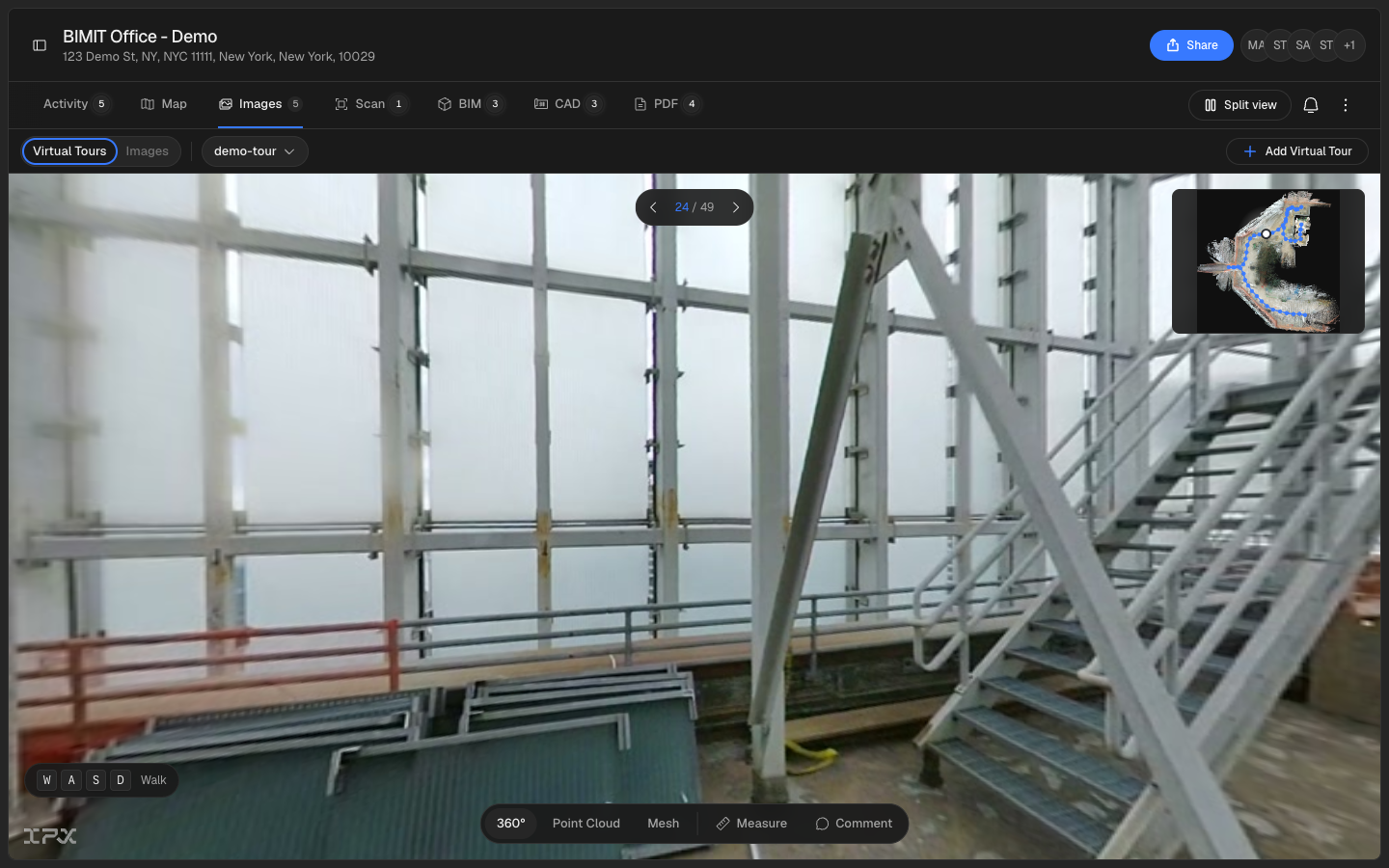

Film a walkthrough with any 360 camera and upload the video to get a walkable virtual tour and a measurable point cloud, no scanner or share-link platform required.
The problem
Getting a virtual tour of a space used to mean either buying into a dedicated 360 camera platform and pasting in its share link, or waiting on a full scan for something as simple as "let me walk through this room." A quick capture from a consumer 360 camera had nowhere to go and nothing to show for it inside IPX.
How it works
The whole flow is one upload.
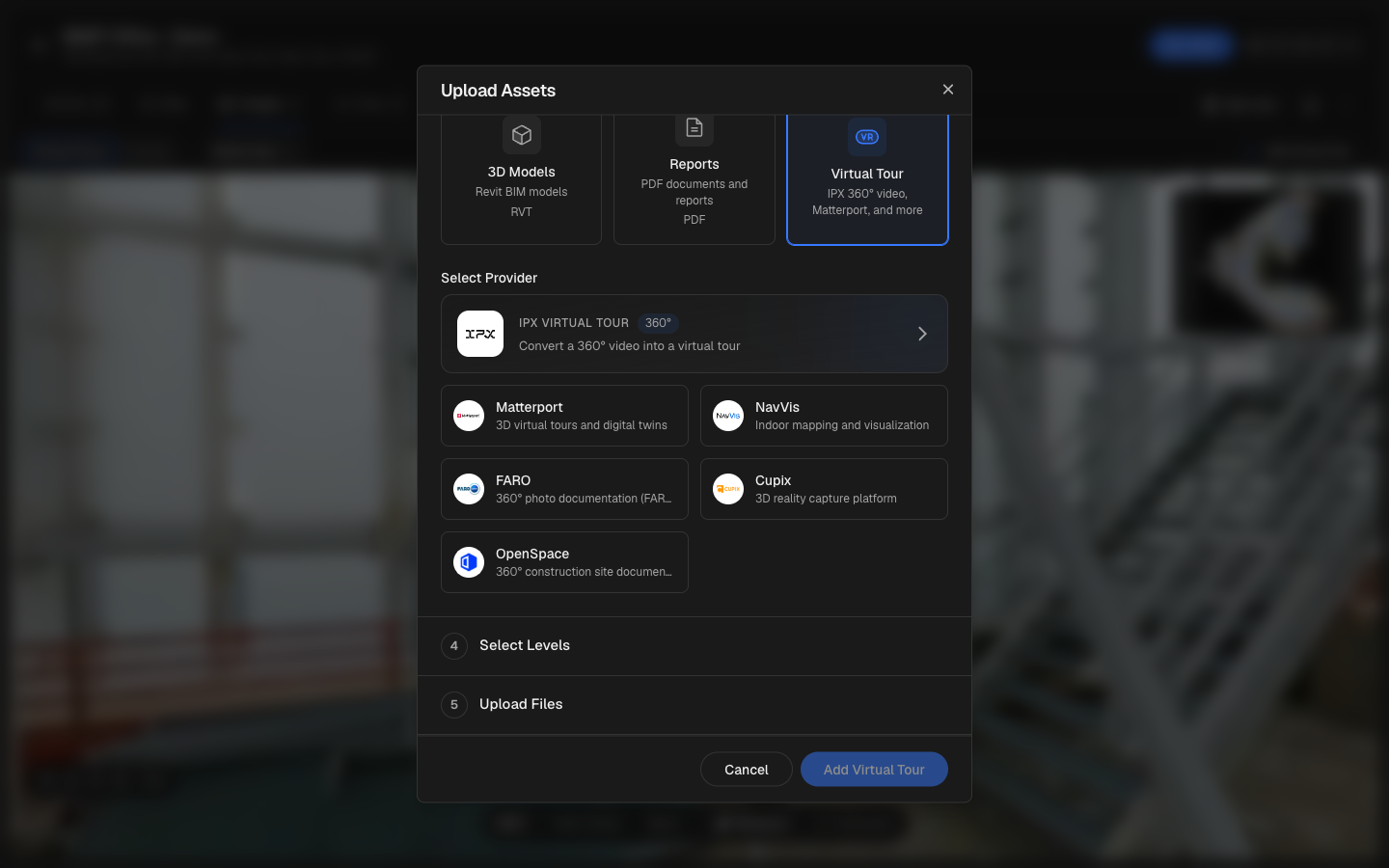
1. Upload your video. Open the upload-assets modal on a location, pick Virtual Tour, and choose IPX as the provider. Instead of pasting a share link from Matterport, NavVis, FARO, Cupix, or OpenSpace, you drop in the 360° video itself: mp4, mov, or insv, equirectangular, up to 10 minutes.
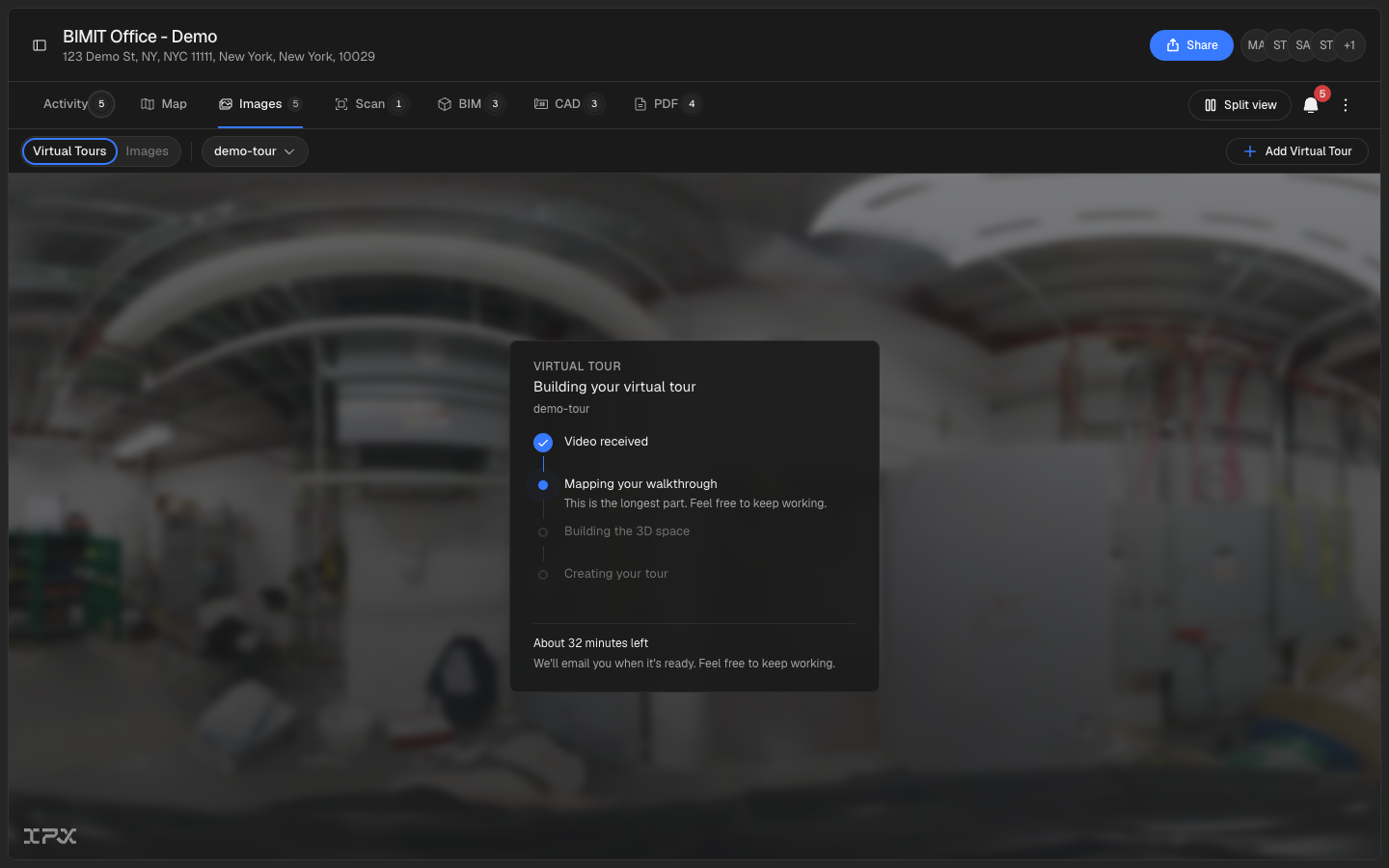
2. Watch it build. While the pipeline runs, the images tab shows live progress through four steps: Video received, Mapping your walkthrough, Building the 3D space, and Creating your tour, with an adaptive "About N minutes left" estimate and a poster frame pulled straight from your video. You don't have to wait around. "We'll email you when it's ready. Feel free to keep working."
3. Walk the space. When it's ready, the tour opens right in the viewer. Step through viewpoints with the arrows or your WASD keys, follow the white path ribbon your walkthrough traced through the building, and keep your bearings with the minimap, which plots your route on a floor plan generated from the video itself.
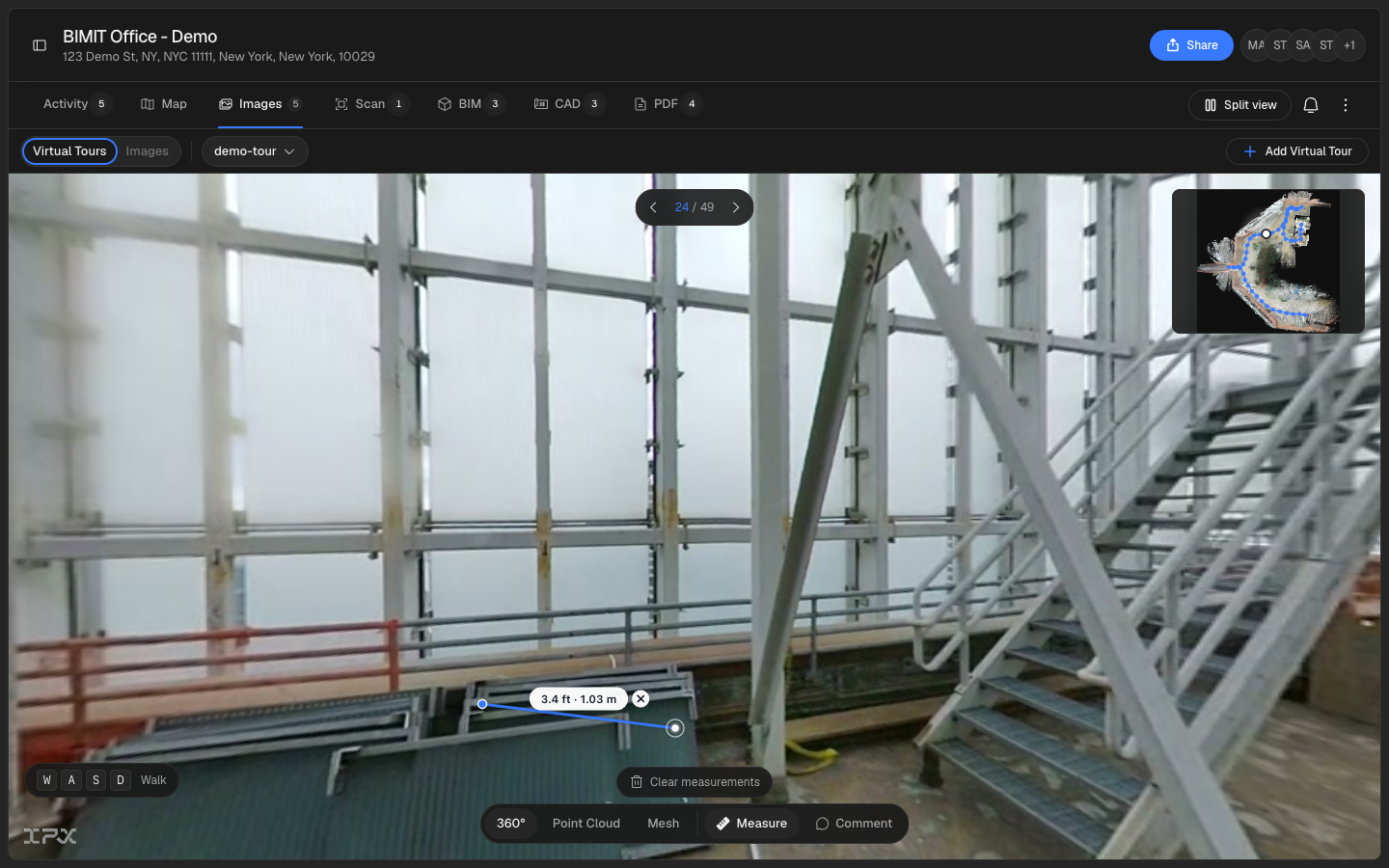
4. Measure what you filmed. The same walkthrough is also a full 3D reconstruction. Switch between 360, Point Cloud, and Mesh views, then pull out the measure tool and click two points to read a real distance straight off your footage, in feet and meters.
Getting started
Open the upload-assets modal on a location, pick Virtual Tour, choose IPX as the provider, and drop in a 360° video. Save the upload, then follow progress from the images tab. When it's done, click into the tour, walk through it, and try the measure tool.
Good to know
Captures with a lot of glass or reflective surfaces can trip up the underlying mapping; if a video fails, you'll get a plain-language reason by email and in the tour card. Videos over 10 minutes aren't supported yet.