See a capture's photo on a tour's map, then press it to go there
Rest the pointer on a capture on a virtual tour's map to see its photo, then press the photo to go there.
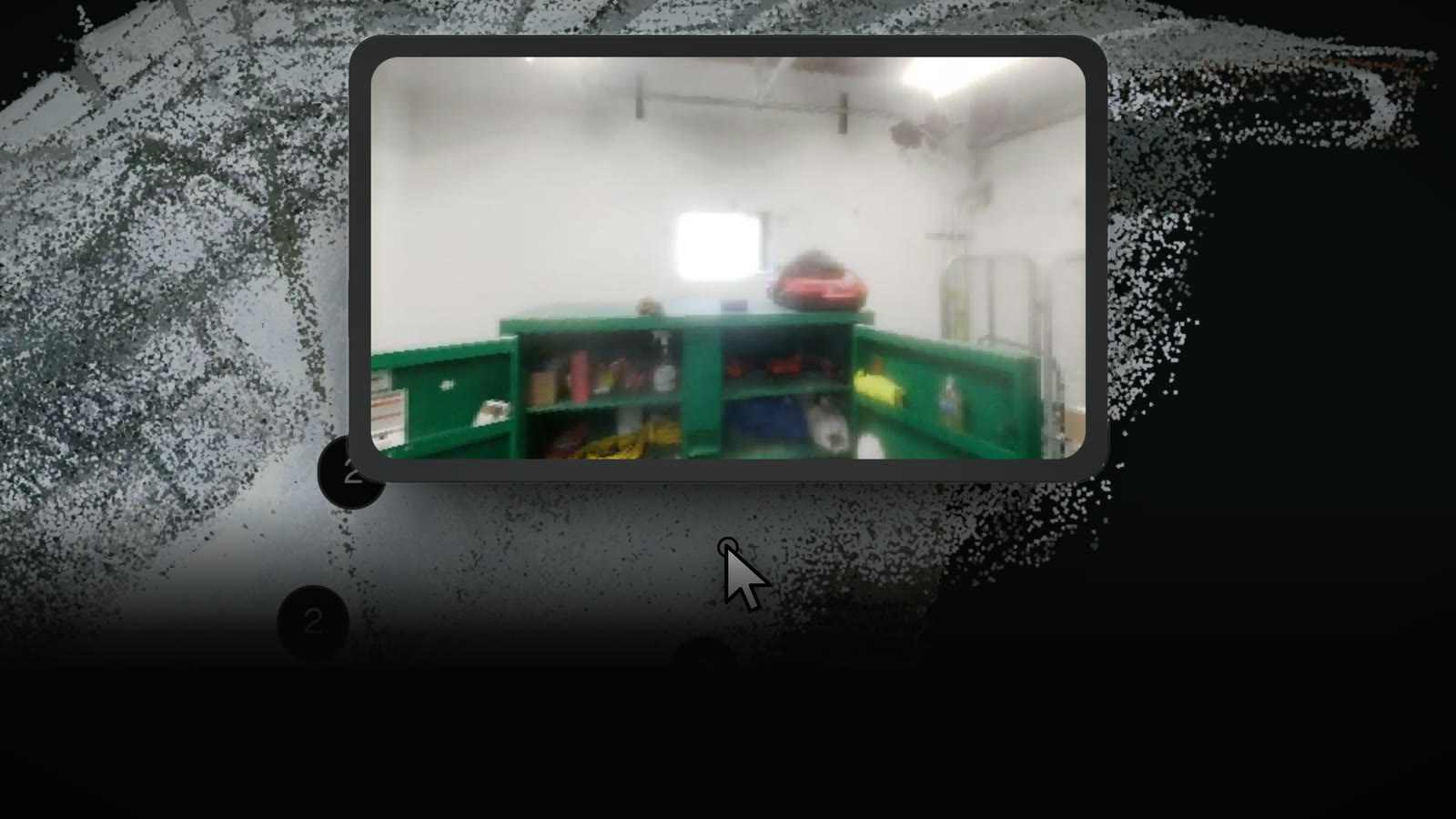
Rest the pointer on a capture on a virtual tour's map to see its photo, then press the photo to go there.
Before, a capture on a tour's large Map was only a dot or a number, and you saw what it showed after you went in. Now resting the pointer on a capture, or reaching it with the keyboard, shows its photo next to it. The photo is the button: press it, and the capture is marked at once while the map moves gently toward it and its panorama loads. Cancel stops the capture from opening, and Esc closes the photo. If your browser asks for reduced motion, the map stays still.