BIMIT Standards
Browse the building element catalog in the help center
You can now browse a catalog of building elements, with images and specifications, right from the help center.
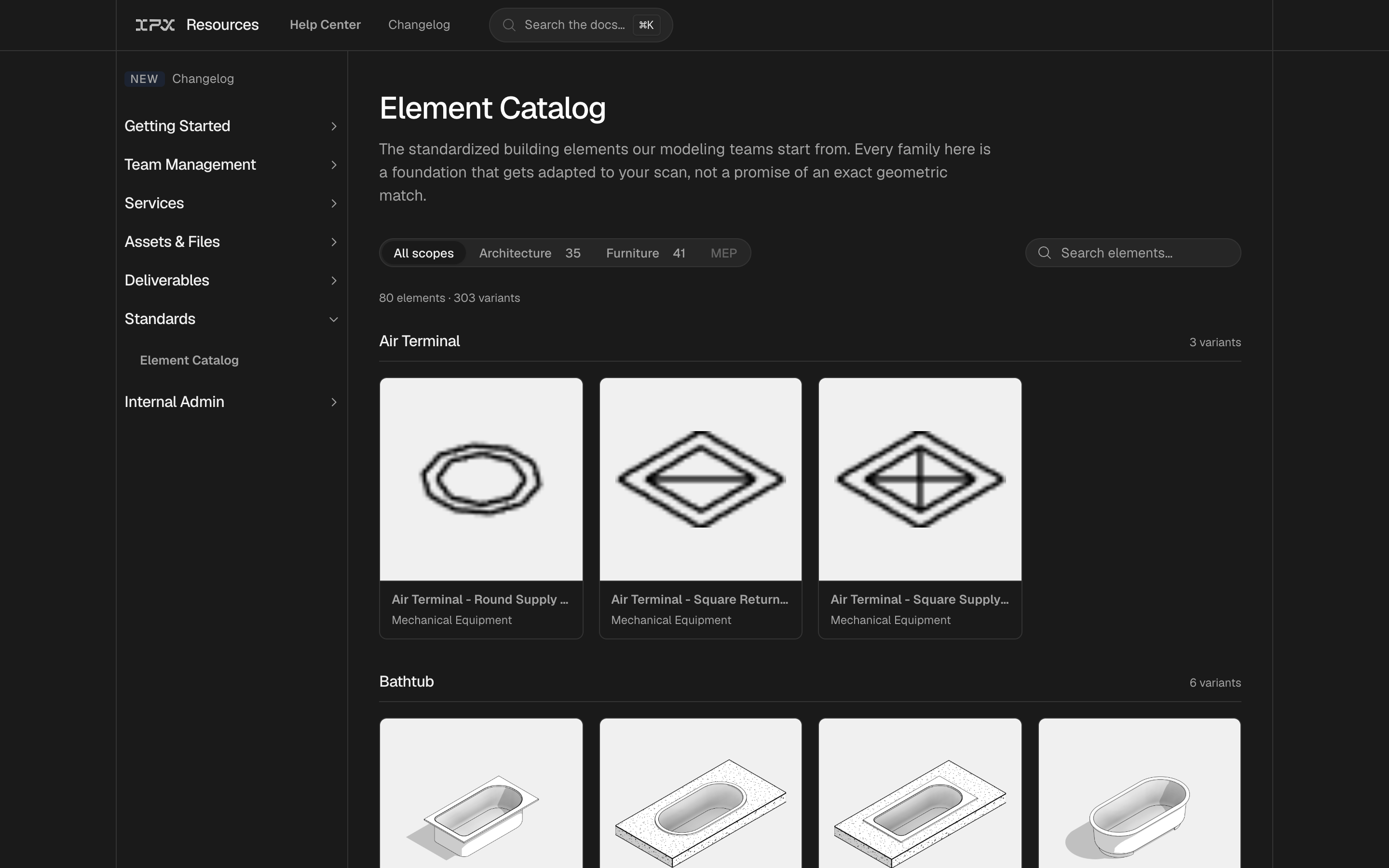

You can now browse a catalog of building elements, with images and specifications, right from the help center.
The problem
Knowing exactly what a fixture, piece of furniture, or piece of equipment looks like, and what specs it carries, used to mean digging through Revit families or asking someone at IPX directly. There was no single place to look up an element's category, LOD, or placement before deciding whether it belonged in a model.
How it works
The help center now has a Standards section built around an element catalog. Elements are organized into scope tabs, currently Architecture and Furniture (MEP is on the way), with element groups you can expand to browse. A search field sits alongside the scope tabs so you can jump straight to what you need instead of scrolling through groups.
Click any element to open its detail view: a thumbnail switcher lets you flip between variants, and each variant shows its scope, group, subtype, discipline, Revit category, LOD, and placement. From there you can download the element as a .rfa file in either metric or imperial units.
The catalog reflects what's currently published, images and specs stay current automatically as new content is added, with no extra steps on your end.
Getting started
Open /help and select Standards. Choose a scope tab, expand a group or search for an element, then click it to see the detail view and download a variant.
Good to know
The catalog is visible without an account, so you can share a link with anyone who needs to check an element's specs.